> ## Documentation Index
> Fetch the complete documentation index at: https://qodex.ai/docs/llms.txt
> Use this file to discover all available pages before exploring further.
# Test groups and folders
> Organize scenarios into reusable groups, run them sequentially or in parallel, and understand how folders behave in Qodex.
# Test groups and folders
Test groups let you save a set of scenarios as one runnable unit. They help teams keep related API and UI scenarios together, run a full business flow in the right order, or create a folder of independent checks that should run together.
In the Qodex UI, the scenario tree uses a folder-style layout. In the runner and API, the same object is called a scenario group. You can think of a folder as the visual organization and a group as the executable run unit behind it.
Groups can also include one nested folder level. Use sub-folders when one runnable group has a few smaller areas inside it, such as `Checkout smoke` with `Cart`, `Payment`, and `Receipt` sub-folders.
## When to use a group
Use a test group when:
* Several scenarios describe one larger workflow.
* A set of checks should be started together from the web app, schedule, webhook, or CI.
* You want a folder-like view for related scenarios.
* You want one nested folder level inside a larger group.
* You want to attach one CSV to a whole flow instead of attaching data to each scenario.
* You want a clean result page where related scenarios appear under one group container.
For a one-off check, run a [single scenario](/run-tests-single-scenario). For a broader named slice, use [tag-filtered runs](/run-tests-tag-filtered). For a complete regression pass, use the [full suite](/run-tests-full-suite).
## Sequential groups
A sequential group runs scenarios in the order you set.
Use sequential mode when a later scenario depends on an earlier one. For example, one scenario creates an account, the next scenario updates it, and the final scenario deletes it.
Sequential groups have order-dependent behavior:
* Scenarios run top to bottom.
* Captured values can flow from one scenario to the next with `${VAR}` placeholders.
* **Stop on first scenario failure** is honored.
* If one scenario fails and stop-on-failure is enabled, the remaining scenarios in that iteration are marked skipped.
* A scenario in a sequential group cannot also belong to another group.
Sequential mode is best for flows where the scenarios are parts of one story.
## Parallel folders
A parallel group runs its scenarios independently at the same time, within the project's concurrency limits.
Use parallel mode when the scenarios are related for organization but do not depend on each other. For example, a smoke folder can contain independent checks for login, search, checkout, and account settings.
Parallel folders behave differently from sequential groups:
* Scenarios run concurrently.
* Captured values are not shared between scenarios.
* Stop-on-failure does not apply because all scenarios are already in flight.
* A scenario can belong to more than one parallel folder.
* The test run result shows the group with a parallel indicator.
New groups are optimized for this folder-style use case, so choose sequential only when the order matters.
## Create a group
Open **Scenarios**, switch to **Scenario groups**, then click **New group**.
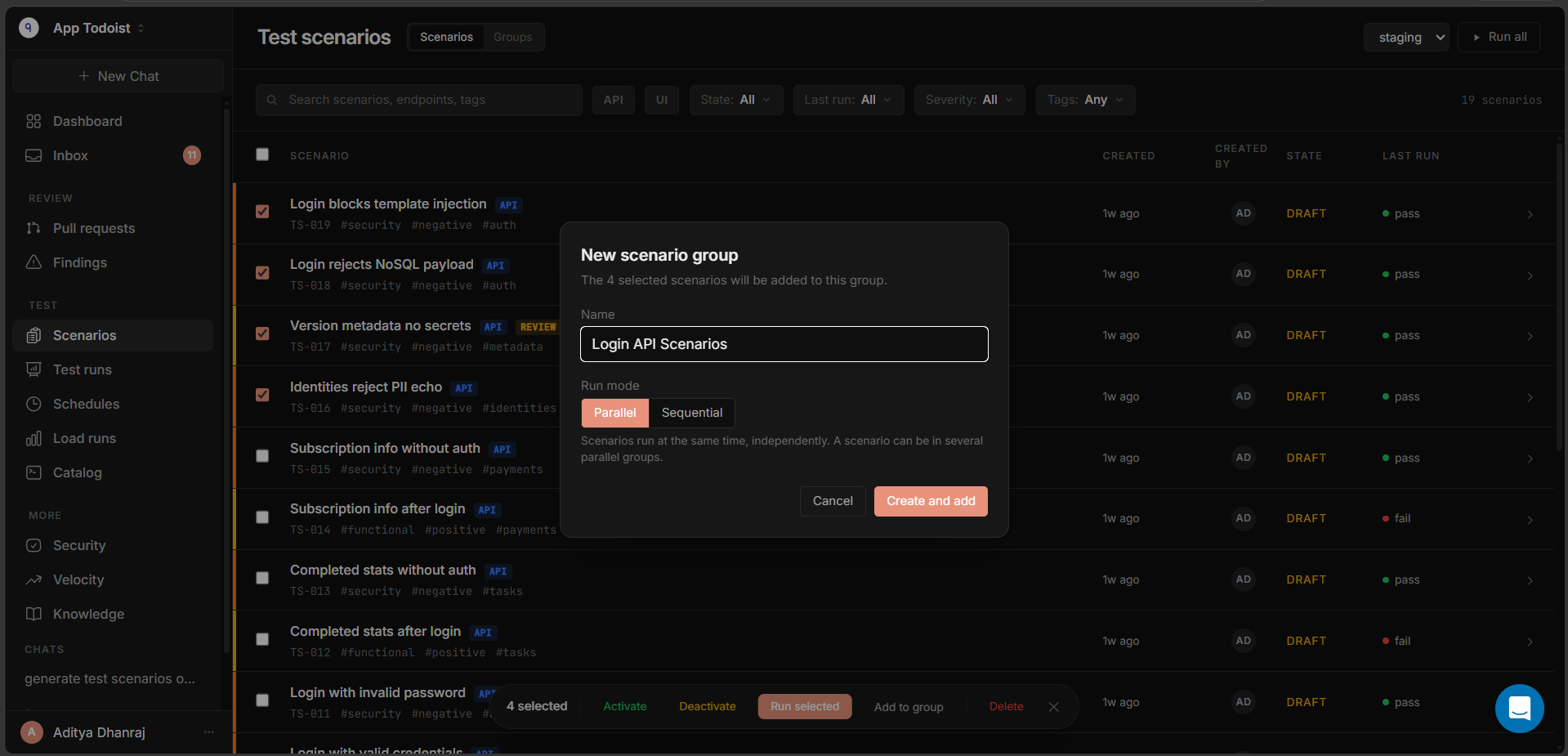
 Choose:
* **Name**: a readable name such as `Checkout smoke` or `New user onboarding`.
* **Mode**: parallel for independent checks, sequential for dependent flows.
* **Scenarios**: the scenarios that should belong to the group.
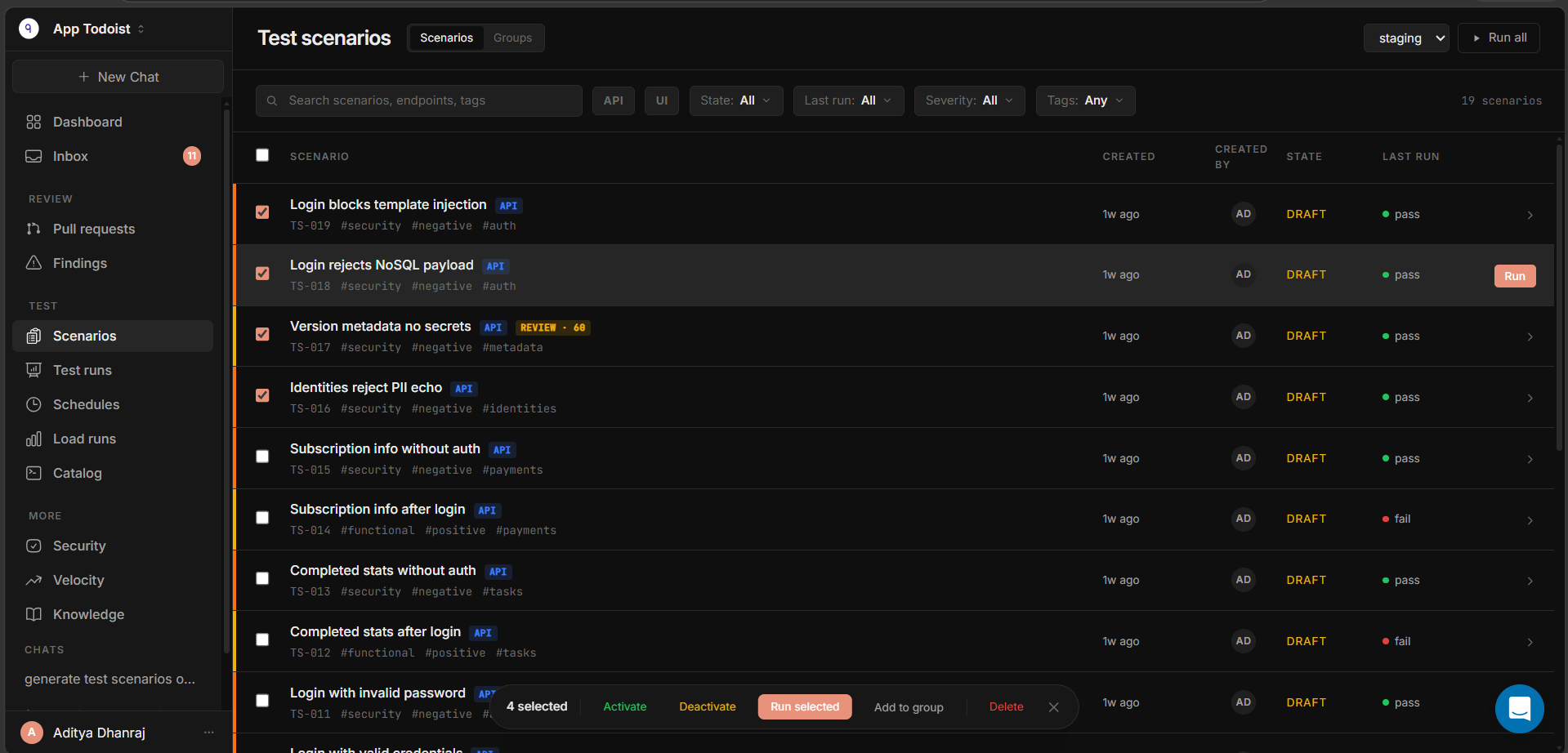
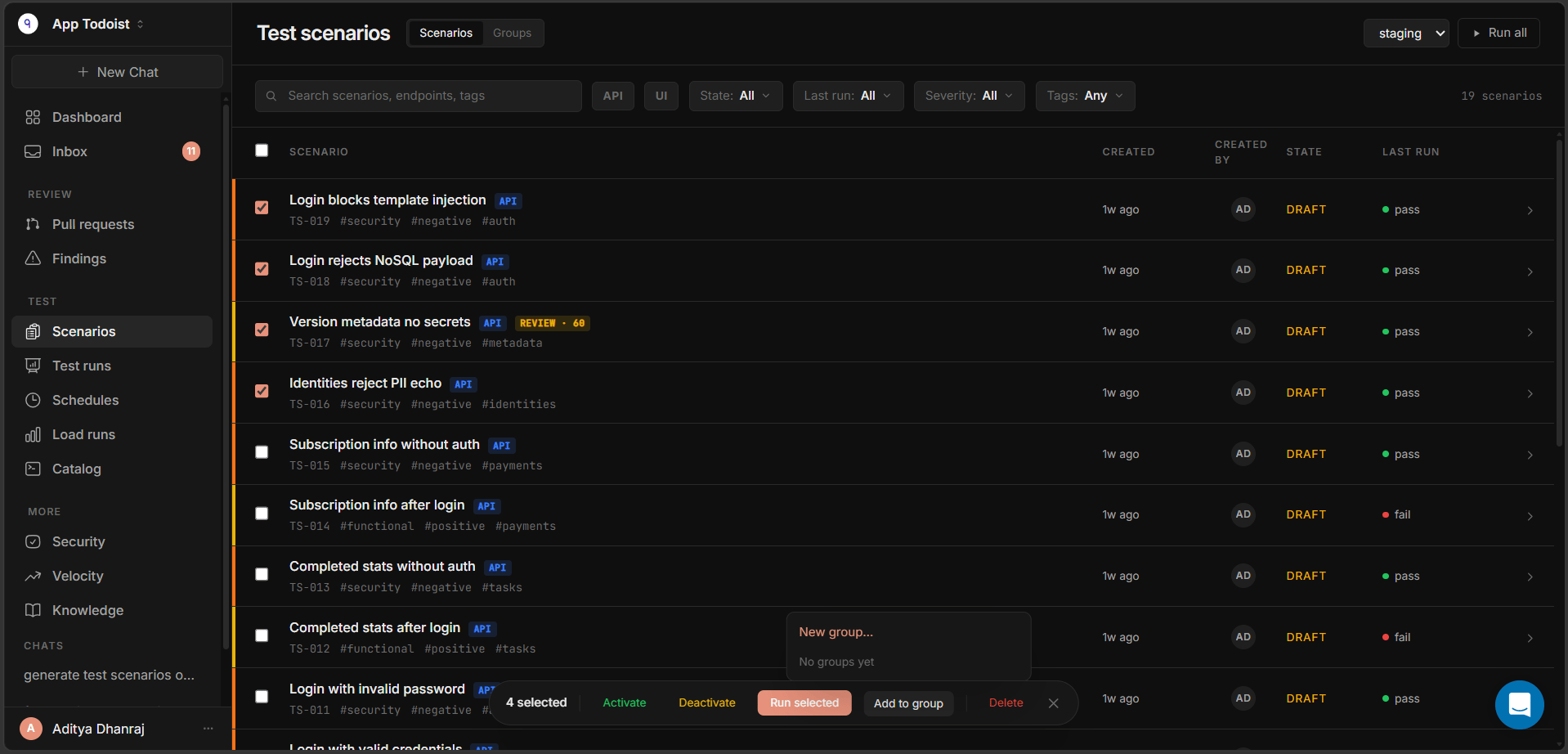
You can also select scenarios from the scenario list and use **Add to group**. Qodex validates the membership rules when you save, so it will stop you from adding a scenario to an invalid group shape.
Choose:
* **Name**: a readable name such as `Checkout smoke` or `New user onboarding`.
* **Mode**: parallel for independent checks, sequential for dependent flows.
* **Scenarios**: the scenarios that should belong to the group.
You can also select scenarios from the scenario list and use **Add to group**. Qodex validates the membership rules when you save, so it will stop you from adding a scenario to an invalid group shape.
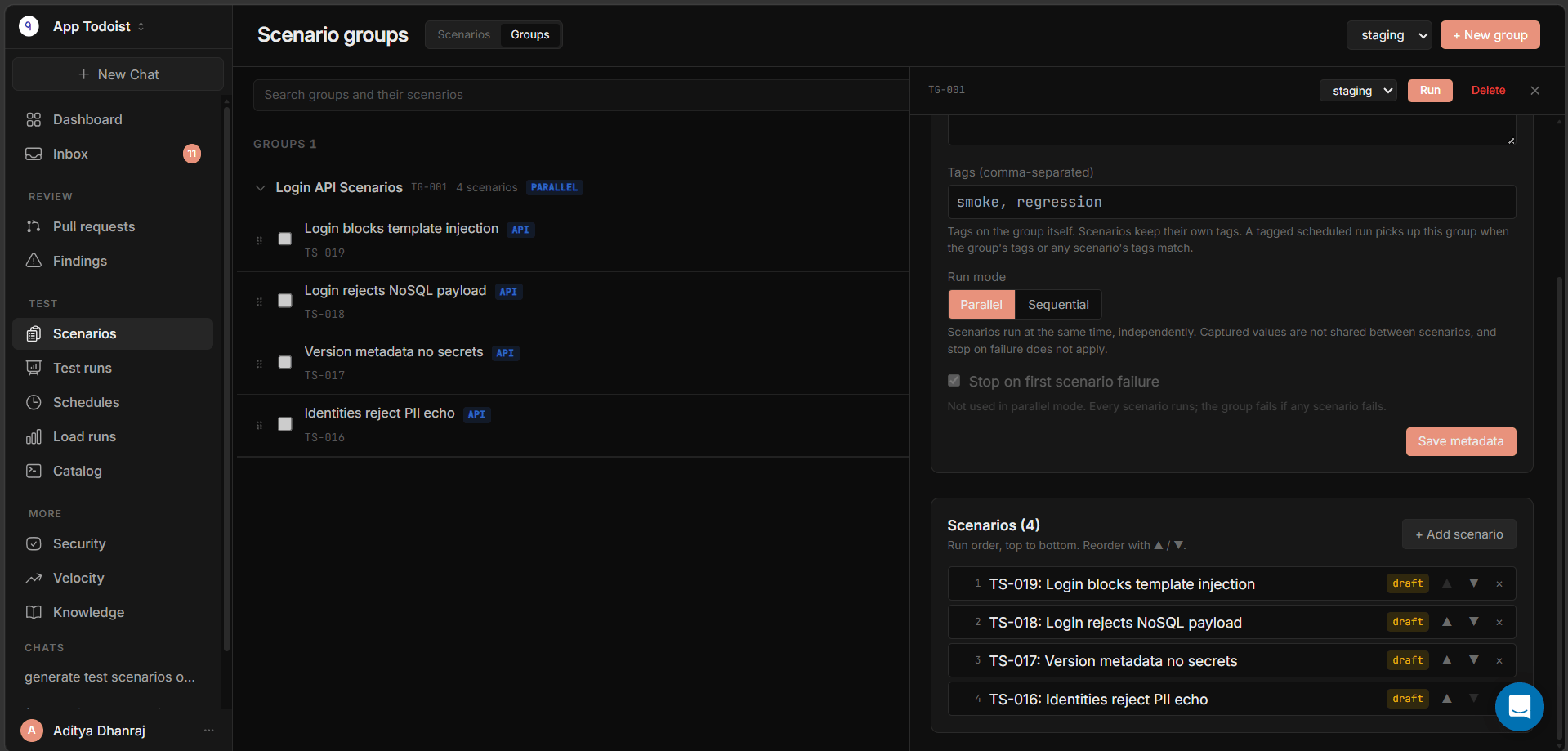
 ## Manage scenarios
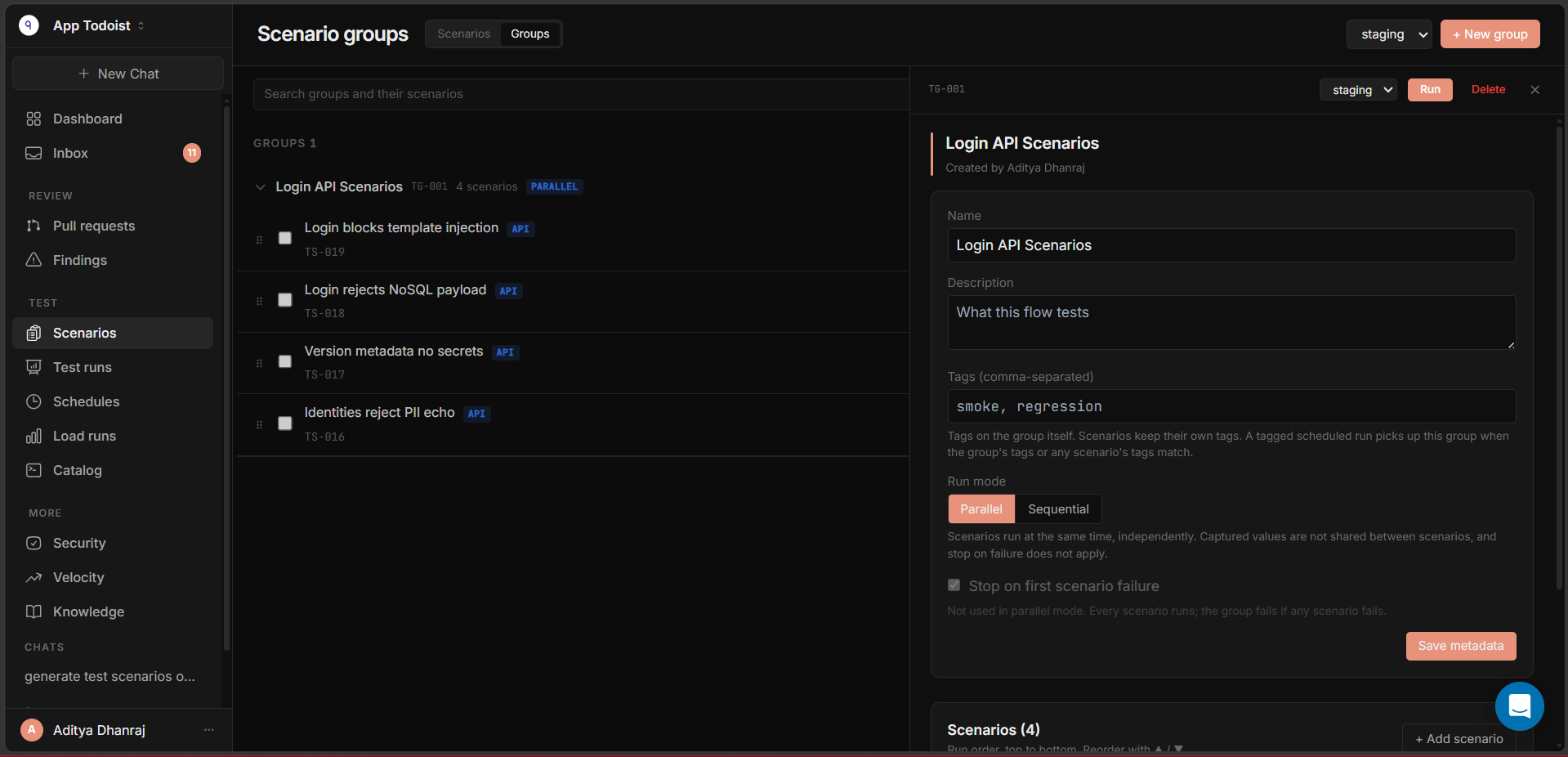
Inside a group, you can:
* Add more scenarios.
* Remove a scenario from that group.
* Reorder scenarios.
* Change the group name, description, tags, run mode, and stop-on-failure setting.
* Delete the group without deleting the scenarios.
Deleting a group only removes the group container. The scenarios stay in the project with their scripts, run history, tags, and findings.
## Manage scenarios
Inside a group, you can:
* Add more scenarios.
* Remove a scenario from that group.
* Reorder scenarios.
* Change the group name, description, tags, run mode, and stop-on-failure setting.
* Delete the group without deleting the scenarios.
Deleting a group only removes the group container. The scenarios stay in the project with their scripts, run history, tags, and findings.
 ## Run a group
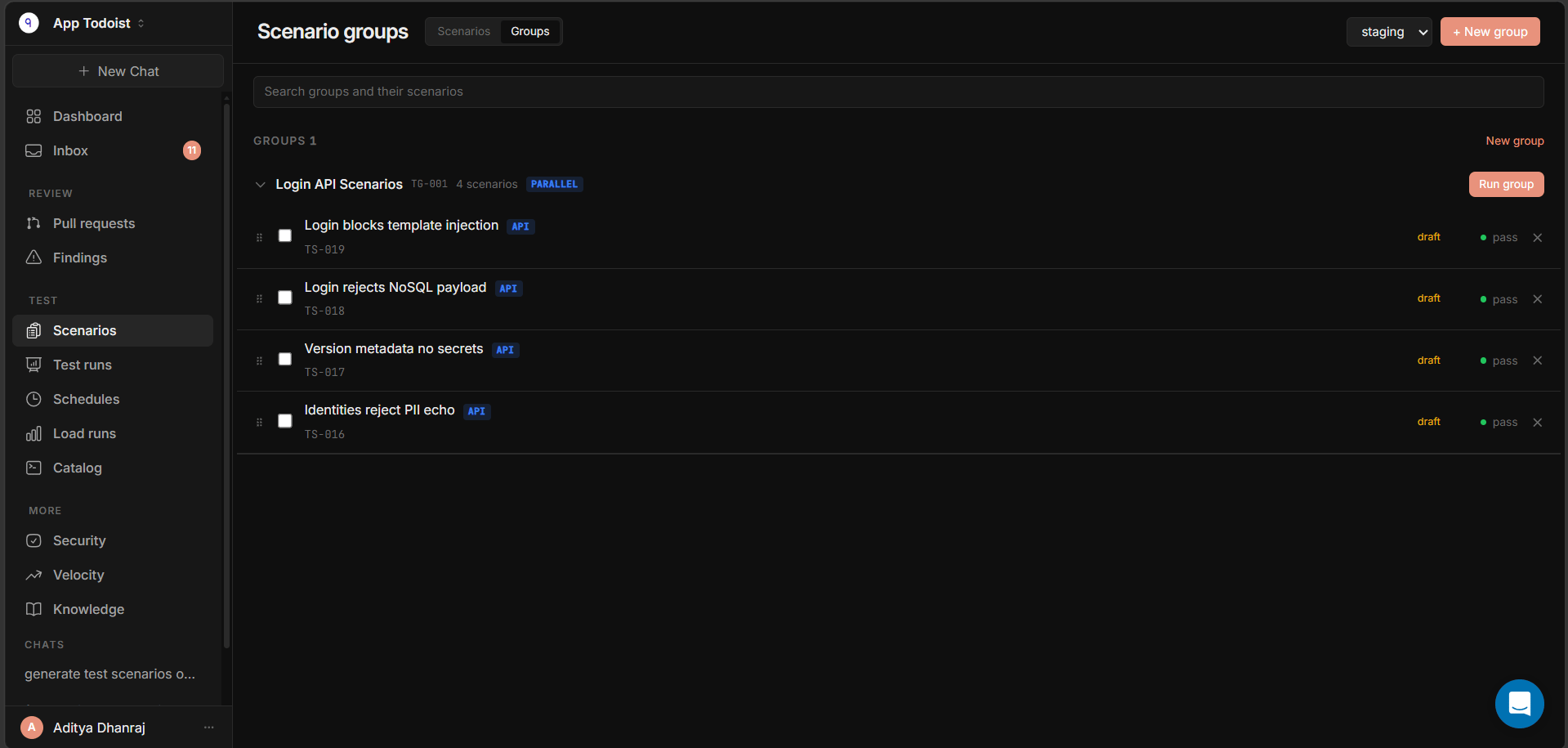
You can run a group anywhere Qodex accepts a run scope:
* From the **Scenario groups** view with **Run group**.
* From a schedule.
* From a webhook or CI flow through the configured schedule or selected run scope.
* As part of the full active suite.
* As part of a tag-filtered run when the group tags or any scenario tags match.
When the run starts, Qodex opens the normal test run detail page. Grouped scenarios appear together under one group header, so it is easy to see which checks belong to the same flow or folder.
For UI-only groups, the **Record** action can run the group and capture video for each UI scenario.
## Use CSV data with a group
A group can own one CSV data file. When it does, Qodex runs the whole group once per CSV row.
In a sequential group, each row drives the full ordered flow before the next row starts. Captures reset between rows, so one row does not leak values into another.
In a parallel group, each scenario and row combination is independent. Row values are still available as `${columnName}` variables, but scenarios do not share captures with each other.
Scenarios cannot keep individual CSV files once the group owns a CSV. Attach the data file to the group when the data should drive the whole workflow.
## Search and organization
The Scenario groups view is built for navigation:
* Search can match group names and scenarios inside groups.
* Search can also surface matches inside sub-folders, while the parent group keeps an accurate rolled-up scenario count.
* Groups show their test group id, such as `TG-003`.
* The group row shows scenario count, parallel mode, and CSV status when present.
* You can drag scenarios to reorder them inside the same group.
* Use **Add to group** when a scenario needs to join another valid group.
Ungrouped scenarios stay in the main scenarios view, so the groups tab stays focused on saved folders and flows.
Sub-folders are for organization inside one group, not separate runnable suites. A scenario can belong to one sub-folder inside its parent group, and test run results keep that sub-folder label so the result page matches the folder tree.
## Run a group
You can run a group anywhere Qodex accepts a run scope:
* From the **Scenario groups** view with **Run group**.
* From a schedule.
* From a webhook or CI flow through the configured schedule or selected run scope.
* As part of the full active suite.
* As part of a tag-filtered run when the group tags or any scenario tags match.
When the run starts, Qodex opens the normal test run detail page. Grouped scenarios appear together under one group header, so it is easy to see which checks belong to the same flow or folder.
For UI-only groups, the **Record** action can run the group and capture video for each UI scenario.
## Use CSV data with a group
A group can own one CSV data file. When it does, Qodex runs the whole group once per CSV row.
In a sequential group, each row drives the full ordered flow before the next row starts. Captures reset between rows, so one row does not leak values into another.
In a parallel group, each scenario and row combination is independent. Row values are still available as `${columnName}` variables, but scenarios do not share captures with each other.
Scenarios cannot keep individual CSV files once the group owns a CSV. Attach the data file to the group when the data should drive the whole workflow.
## Search and organization
The Scenario groups view is built for navigation:
* Search can match group names and scenarios inside groups.
* Search can also surface matches inside sub-folders, while the parent group keeps an accurate rolled-up scenario count.
* Groups show their test group id, such as `TG-003`.
* The group row shows scenario count, parallel mode, and CSV status when present.
* You can drag scenarios to reorder them inside the same group.
* Use **Add to group** when a scenario needs to join another valid group.
Ungrouped scenarios stay in the main scenarios view, so the groups tab stays focused on saved folders and flows.
Sub-folders are for organization inside one group, not separate runnable suites. A scenario can belong to one sub-folder inside its parent group, and test run results keep that sub-folder label so the result page matches the folder tree.
 ## Common choices
| Need | Recommended shape |
| ------------------------------------ | ------------------------------------- |
| Run unrelated smoke checks together | Parallel group |
| Build a multi-step business workflow | Sequential group |
| Share captured ids between scenarios | Sequential group |
| Put one scenario in multiple folders | Parallel groups |
| Drive the whole flow from one CSV | Group-level CSV |
| Stop after the first failed scenario | Sequential group with stop-on-failure |
## Limits and caveats
* Parallel groups do not share captured values between scenarios.
* Stop-on-failure is ignored in parallel mode.
* Sequential membership is exclusive: a scenario in a sequential group cannot belong to another group.
* Sub-folder membership is exclusive inside its parent group.
* A scenario with its own CSV must detach that file before it can join a group.
* A group with no runnable scenarios cannot start a run.
## Related
Start manual runs for scenarios, selected rows, and groups.
Include groups in recurring smoke and regression runs.
See how groups participate in project-wide runs.
Understand the reusable test unit that groups organize.
## Common choices
| Need | Recommended shape |
| ------------------------------------ | ------------------------------------- |
| Run unrelated smoke checks together | Parallel group |
| Build a multi-step business workflow | Sequential group |
| Share captured ids between scenarios | Sequential group |
| Put one scenario in multiple folders | Parallel groups |
| Drive the whole flow from one CSV | Group-level CSV |
| Stop after the first failed scenario | Sequential group with stop-on-failure |
## Limits and caveats
* Parallel groups do not share captured values between scenarios.
* Stop-on-failure is ignored in parallel mode.
* Sequential membership is exclusive: a scenario in a sequential group cannot belong to another group.
* Sub-folder membership is exclusive inside its parent group.
* A scenario with its own CSV must detach that file before it can join a group.
* A group with no runnable scenarios cannot start a run.
## Related
Start manual runs for scenarios, selected rows, and groups.
Include groups in recurring smoke and regression runs.
See how groups participate in project-wide runs.
Understand the reusable test unit that groups organize.