How to Set Up Uptime Alerts: A Step-by-Step Guide
Uptime Alert Setup: Quick Reference
| Decision | Recommendation |
|---|---|
| Primary channel | Slack for team awareness + PagerDuty for on-call |
| Confirmation | Require 2+ regions to confirm before alerting |
| Consecutive failures | Alert after 2-3 consecutive failures (not 1) |
| Escalation | On-call (0 min) > Team lead (10 min) > Manager (20 min) |
| Cooldown | 15-30 minutes between repeat alerts for same issue |
| Alert content | Service name, URL, error type, duration, dashboard link |
| Environment rules | Production: full alerts. Staging: Slack only. Dev: none |
| Review cadence | Monthly review of alert rules and noise levels |
Why Alert Setup Is the Most Important Part of Monitoring

Setting up uptime monitors is the easy part. The hard part -- and the part that determines whether monitoring actually saves you from outages -- is alert configuration. A monitor without good alerts is just a logging system. A monitor with bad alerts is worse: it trains your team to ignore notifications.
Get alerting right, and your team detects and resolves outages in minutes. Get it wrong, and you end up with either alert fatigue (too many false alarms, team ignores everything) or alert gaps (real outages go unnotified for hours).
This guide walks through every aspect of uptime alert configuration, from choosing the right notification channels to building escalation policies, reducing false positives, and automating incident response. If you have not set up your monitors yet, start with our guides on what is uptime monitoring and choosing a monitoring tool.
Step 1: Choose Your Alert Channels
Different alert channels serve different purposes. The key is matching the channel to the severity and urgency of the alert.
Slack / Microsoft Teams
Best for: Team awareness, non-critical alerts, and as a secondary channel for critical alerts.
Slack is the default alert channel for most teams. Post alerts to a dedicated #monitoring or #incidents channel. Everyone on the team sees the alert, can discuss it, and can coordinate the response in-thread. But Slack alone is not enough for critical alerts -- people mute channels, step away from their desk, and miss messages outside working hours.
PagerDuty / Opsgenie / VictorOps
Best for: Critical production alerts that need immediate human attention, especially outside business hours.
Incident management platforms are designed to wake people up. They escalate through phone calls, SMS, push notifications, and can track acknowledgment and resolution. If someone does not acknowledge within a set time, the alert escalates to the next person. This is essential for production services.
Best for: Low-urgency notifications, daily/weekly summaries, and compliance records.
Email is the slowest alert channel. Use it for non-urgent notifications like SSL certificate expiry warnings (30 days out), weekly uptime reports, or resolved-incident summaries. Never rely on email as your only channel for critical alerts.
SMS
Best for: Last-resort escalation for the most critical issues.
SMS breaks through Do Not Disturb settings on most phones. Reserve it for Severity 1 incidents that have not been acknowledged through other channels. Overusing SMS leads to people blocking the number.
Webhooks
Best for: Custom integrations, automated workflows, and ChatOps.
Webhooks let you trigger custom actions when alerts fire -- create Jira tickets, update status pages, send messages to Discord, or trigger automated remediation scripts. They are the most flexible channel but require development effort to set up.
Recommended Channel Strategy
| Severity | Channels | Response Time |
|---|---|---|
| Critical (Sev 1) | PagerDuty + Slack + SMS escalation | Under 5 minutes |
| High (Sev 2) | PagerDuty + Slack | Under 15 minutes |
| Medium (Sev 3) | Slack only | Under 1 hour |
| Low (Sev 4) | Email + Slack (non-urgent channel) | Next business day |
Step 2: Configure Alert Triggers
The trigger configuration determines when an alert fires. This is where you balance detection speed against false positive rate.
Multi-Region Confirmation
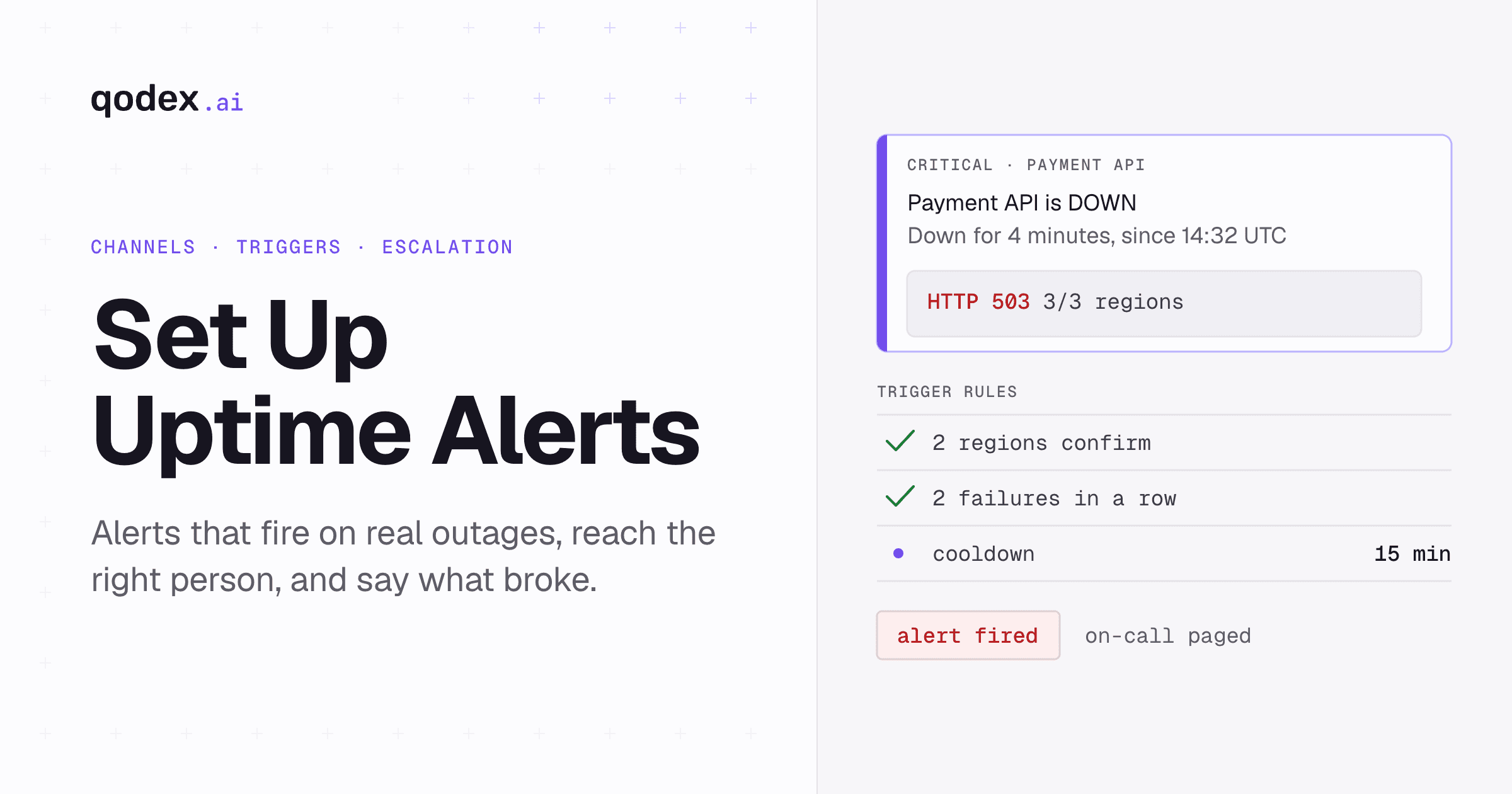
Never alert based on a single monitoring location detecting failure. Require confirmation from at least 2 geographic regions. If your service is down from New York but reachable from London and Tokyo, it is likely a regional network issue, not a full outage. Multi-region confirmation eliminates the majority of false positives.
Consecutive Failure Threshold
A single failed check can be caused by a brief network hiccup, a momentary server spike, or even a monitoring platform issue. Configure alerts to require 2-3 consecutive failures before firing. With 30-second check intervals, this means you detect real outages within 60-90 seconds while filtering out transient blips.
Timeout Configuration
Set appropriate timeout values for your checks. A reasonable default is 10-30 seconds depending on the endpoint. An API health check should respond in under 1 second, so a 10-second timeout is generous. A page that renders complex dashboards might legitimately take 5 seconds, so it needs a longer timeout.
Too-short timeouts cause false alerts from slow but functional responses. Too-long timeouts delay detection when the service is truly hung.
Status Code Rules
Be specific about which status codes trigger alerts:
Alert on: 5xx errors (server errors), prolonged 4xx on health endpoints, timeouts, connection refused
Do not alert on: 301/302 redirects (usually expected), 404 on non-critical paths, 429 rate limiting (unless sustained)
Special case: 200 OK with invalid content (use content validation to catch this)
Step 3: Build Escalation Policies
Escalation policies ensure that alerts reach the right person and that unacknowledged alerts do not fall through the cracks.
Standard Three-Tier Escalation
Tier 1: On-Call Engineer (Immediate)
Alert fires via PagerDuty + Slack
Expected acknowledgment within 5 minutes
This person triages the issue and begins investigation
Tier 2: Team Lead (10 minutes, no acknowledgment)
If the on-call engineer has not acknowledged, escalate to the team lead
Additional PagerDuty notification + SMS
Team lead can either handle it or coordinate getting the right person
Tier 3: Engineering Manager (20 minutes, still no acknowledgment)
If neither Tier 1 nor Tier 2 has responded, this is now a serious concern
SMS + phone call to engineering manager
At this point, the issue has been unattended for 20 minutes and requires executive attention
On-Call Rotation
Set up a weekly or biweekly on-call rotation so the burden is shared across the team. Use your incident management platform (PagerDuty, Opsgenie) to manage the schedule. Key principles:
Rotate weekly -- anything longer leads to burnout
Allow shift swaps for personal conflicts
Provide compensatory time off for heavy on-call weeks
Review on-call load monthly -- if one team is getting paged excessively, invest in fixing the underlying reliability issues
Step 4: Craft Useful Alert Messages
An alert message should give the responder everything they need to start investigating immediately, without clicking through multiple dashboards.
Essential Information in Every Alert
Service name -- Which service is affected? (e.g., "Payment API" not "Monitor #47")
Check URL -- The exact URL that failed (https://api.example.com/v2/health)
Failure type -- Timeout, HTTP 503, SSL error, content mismatch
Failure duration -- How long has the failure persisted? (e.g., "Down for 3 minutes")
Affected regions -- Which monitoring locations detected the failure?
Dashboard link -- Direct link to the monitoring dashboard for this check
Recent response time -- Shows if the failure was preceded by latency degradation
Example Alert Message
CRITICAL: Payment API is DOWN

Service: Payment API
URL: https://api.example.com/v2/payments/health
Error: HTTP 503 Service Unavailable
Duration: Down for 4 minutes (since 14:32 UTC)
Regions: Failed in US-East, US-West, EU-West (3/3 regions)
Last response time: 8,234ms (threshold: 2,000ms)
Dashboard: https://monitoring.example.com/checks/payment-api

Recent timeline:
  14:28 - Response time spiked to 4,200ms
  14:30 - Response time 7,100ms
  14:32 - First failure (timeout after 10s)
  14:32 - Confirmed down from all 3 regions
Compare this to a generic alert that just says "Monitor 47 is down." The rich alert saves the responder 5-10 minutes of initial investigation, which can be the difference between a 5-minute outage and a 20-minute outage.
Step 5: Reduce Alert Fatigue
Alert fatigue is the most insidious problem in monitoring. When your team receives too many alerts -- especially false positives -- they start ignoring all of them. This means real outages get the same non-response as false alarms. Here is how to prevent it:
1. Implement Cooldown Periods
After an alert fires, suppress duplicate alerts for the same check for 15-30 minutes. If the service is still down after the cooldown, send a follow-up alert with the updated duration. This prevents alert storms where your team receives a new notification every 30 seconds during an extended outage.
2. Group Related Alerts
If 10 monitors on the same server all fail simultaneously, the root cause is the server -- not 10 separate problems. Your alerting system should group these into a single incident: "Server web-prod-01: 10 monitors down" instead of 10 individual alerts.
3. Distinguish Flapping from Real Outages
Flapping occurs when a service rapidly alternates between up and down states. Instead of sending UP/DOWN alerts every 30 seconds, detect the flapping pattern and send a single "Service is flapping" alert. This indicates an instability that needs investigation, but it is handled differently from a complete outage.
4. Monthly Alert Hygiene Reviews
Every month, review your alert history:
Which alerts fired most frequently?
Which alerts were false positives?
Which alerts were acknowledged but required no action?
Which real incidents were NOT caught by alerts?
Use this data to tune thresholds, remove noisy alerts, and add missing coverage. Alert configurations should evolve with your infrastructure.
5. Use Severity Levels Properly
Not everything is critical. If everything is Sev 1, nothing is Sev 1. Reserve critical alerts for genuine production-affecting issues. Use lower severity levels for degradation, staging environment issues, and warning conditions.
Step 6: Configure Environment-Specific Rules
Different environments need different alert strategies:
Production
Full alerting with PagerDuty escalation
30-60 second check intervals
Multi-region confirmation
24/7 on-call coverage
Staging
Slack-only alerts (no PagerDuty)
3-5 minute check intervals
Business hours response only
Useful for catching issues before they reach production
Development
No uptime alerts (development environments go down frequently by design)
Optional: daily health check email for long-running dev environments
Step 7: Automate Incident Response
Once your alerting is solid, take it further with automation:
Auto-Create Incident Tickets
When a critical alert fires, automatically create an incident ticket in Jira, Linear, or your project management tool. Include the alert details, affected service, and a link to the monitoring dashboard. This ensures every incident is tracked and reviewed.
Auto-Update Status Pages
Connect your monitoring to your status page so it updates automatically when monitors detect issues. Qodex.ai supports this natively. Manual status page updates during an incident distract your team from actually fixing the problem.
Auto-Rollback on Deployment Failures
If monitoring detects a failure within minutes of a deployment, trigger an automatic rollback. Most deployment failures are caused by the new code, and rolling back is the fastest fix. Configure your CI/CD pipeline to listen for monitoring webhooks and rollback when checks fail post-deployment.
Runbook Automation
For known failure modes, automate the first response steps. For example, if a database connection pool exhaustion is detected, automatically restart the connection pool or the application. If a CDN cache is stale, trigger a cache purge. This reduces resolution time from minutes to seconds for common issues.
Integration Examples
Slack Integration
Most monitoring tools offer native Slack integration. Best practices:
Use a dedicated #incidents channel (not #general)
Include actionable buttons in Slack messages (Acknowledge, Escalate, Mute)
Thread incident updates to keep the channel clean
Post both down and recovery notifications
PagerDuty Integration
Connect your monitoring tool to PagerDuty for critical alerting:
Map monitor severity levels to PagerDuty urgency levels
Configure services and escalation policies in PagerDuty
Set up on-call schedules with rotation and overrides
Enable auto-resolve when the monitor recovers
Webhook Integration
Webhooks are the most flexible integration option. Your monitoring tool sends a POST request to your endpoint when alerts fire. Use webhooks to:
Post to Discord or Telegram
Trigger AWS Lambda functions for automated remediation
Update internal dashboards or logging systems
Integrate with custom incident management workflows
Alert Configuration Checklist
Use this checklist when setting up alerts for a new service:
Identify the service criticality tier (Sev 1-4)
Choose appropriate check interval (30s to 5min)
Configure multi-region monitoring (3+ regions)
Set consecutive failure threshold (2-3 failures)
Define timeout values (appropriate for the endpoint type)
Configure primary alert channel (Slack or PagerDuty)
Set up escalation policy (3 tiers)
Configure cooldown period (15-30 minutes)
Add recovery notifications (so the team knows when the issue is resolved)
Test the alert flow end-to-end (trigger a test alert and verify it reaches the right people)
Document the alert in your monitoring runbook
Schedule monthly alert hygiene review
For choosing the right monitoring tool to pair with your alert setup, see our comparison of free uptime monitoring tools. For API-specific monitoring with built-in alerting, Qodex.ai provides intelligent alerts with multi-region confirmation and automated status page updates out of the box.
Frequently Asked Questions
What alert channels should I use for uptime monitoring?
Use multiple channels based on severity. Slack or Microsoft Teams for team awareness and warnings, PagerDuty or Opsgenie for critical after-hours alerts with escalation, email for non-urgent notifications and reports, and SMS as a last-resort escalation for the most critical production issues.
How do I avoid alert fatigue?
Implement multi-location verification before alerting, require consecutive failures (not just one), group related alerts, set cooldown periods between repeat notifications, use proper severity levels, and conduct monthly reviews to eliminate noisy or unnecessary alerts.
What should an uptime alert include?
A good alert includes the service name, check URL, failure type (timeout, HTTP error, SSL issue), failure duration, affected monitoring regions, a direct link to the monitoring dashboard, and recent response time data for context. Rich alerts save minutes during incident investigation.
How quickly should alerts fire after detecting downtime?
For production services, alerts should fire within 1-3 minutes of confirmed downtime. With 30-second check intervals and a 2-failure confirmation threshold, you achieve detection in about 60-90 seconds. Multi-region verification adds slight delay but eliminates false positives.
Should I set up different alerts for different environments?
Yes. Production alerts should be high-priority with full PagerDuty escalation and 24/7 coverage. Staging alerts should use Slack-only notifications during business hours. Development environments typically do not need uptime alerts at all.
How do I set up escalation policies?
Start with the on-call engineer (immediate PagerDuty alert), escalate to the team lead after 10 minutes of no acknowledgment, then to the engineering manager after 20 minutes. Use tools like PagerDuty or Opsgenie to automate the escalation chain and manage on-call rotations.