
Test groups and folders
Test groups let you save a set of scenarios as one runnable unit. They help teams keep related API and UI scenarios together, run a full business flow in the right order, or create a folder of independent checks that should run together. In the Qodex UI, the scenario tree uses a folder-style layout. In the runner and API, the same object is called a scenario group. You can think of a folder as the visual organization and a group as the executable run unit behind it. Groups can also include one nested folder level. Use sub-folders when one runnable group has a few smaller areas inside it, such asCheckout smoke with Cart, Payment, and Receipt sub-folders.
When to use a group
Use a test group when:- Several scenarios describe one larger workflow.
- A set of checks should be started together from the web app, schedule, webhook, or CI.
- You want a folder-like view for related scenarios.
- You want one nested folder level inside a larger group.
- You want to attach one CSV to a whole flow instead of attaching data to each scenario.
- You want a clean result page where related scenarios appear under one group container.
Sequential groups
A sequential group runs scenarios in the order you set. Use sequential mode when a later scenario depends on an earlier one. For example, one scenario creates an account, the next scenario updates it, and the final scenario deletes it. Sequential groups have order-dependent behavior:- Scenarios run top to bottom.
- Captured values can flow from one scenario to the next with
${VAR}placeholders. - Stop on first scenario failure is honored.
- If one scenario fails and stop-on-failure is enabled, the remaining scenarios in that iteration are marked skipped.
- A scenario in a sequential group cannot also belong to another group.
Parallel folders
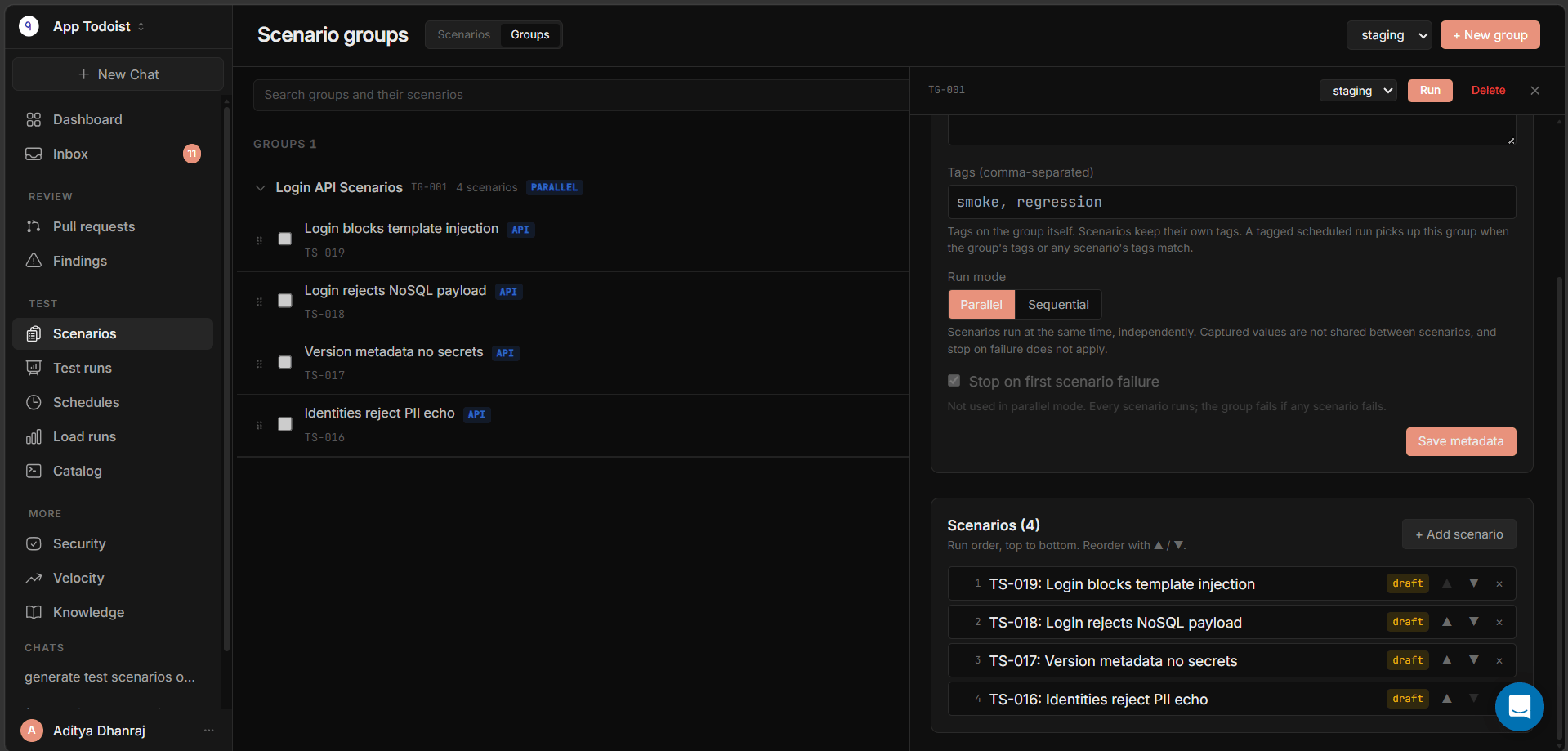
A parallel group runs its scenarios independently at the same time, within the project’s concurrency limits. Use parallel mode when the scenarios are related for organization but do not depend on each other. For example, a smoke folder can contain independent checks for login, search, checkout, and account settings. Parallel folders behave differently from sequential groups:- Scenarios run concurrently.
- Captured values are not shared between scenarios.
- Stop-on-failure does not apply because all scenarios are already in flight.
- A scenario can belong to more than one parallel folder.
- The test run result shows the group with a parallel indicator.
Create a group
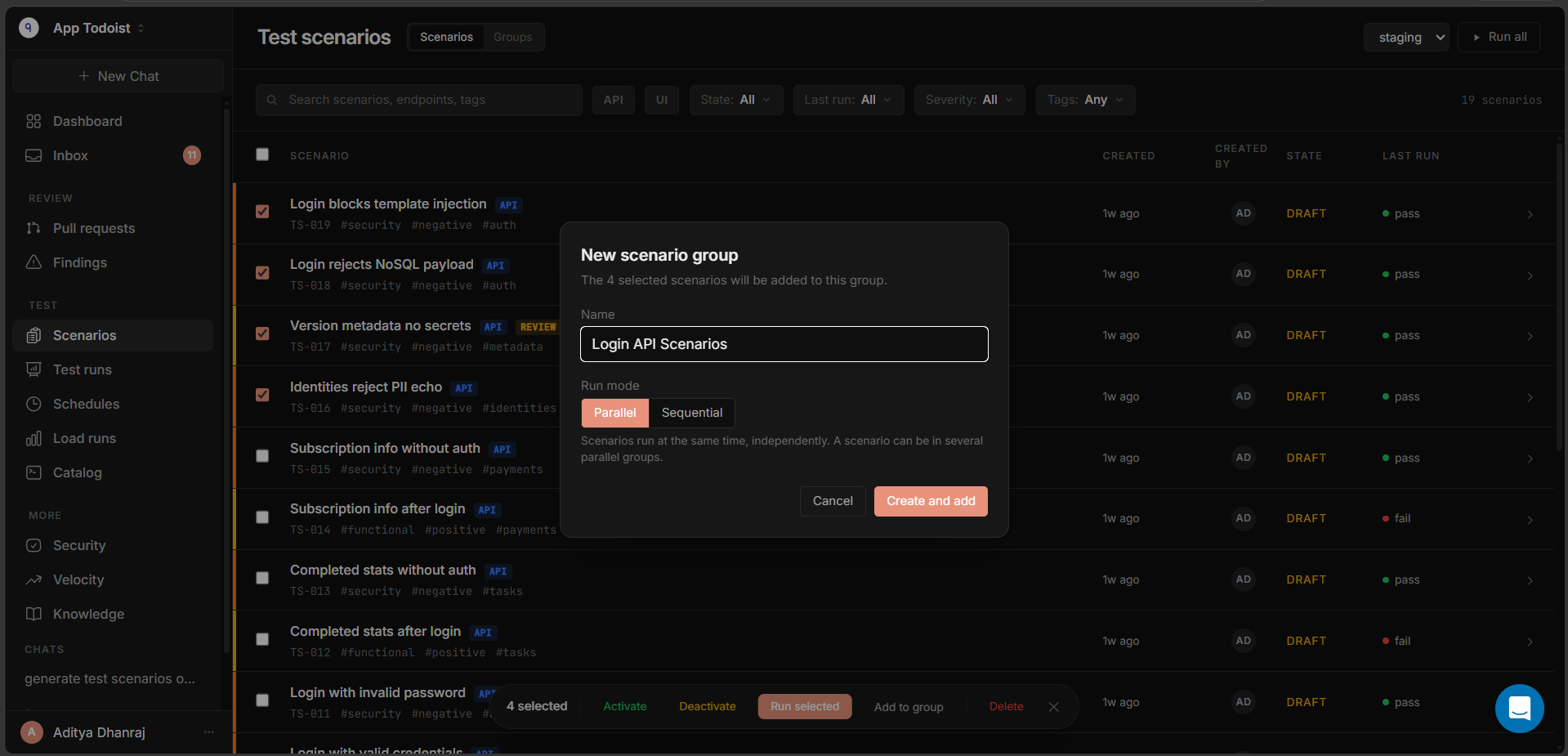
Open Test > Scenarios, switch the toggle at the top of the page to Groups, then click New group.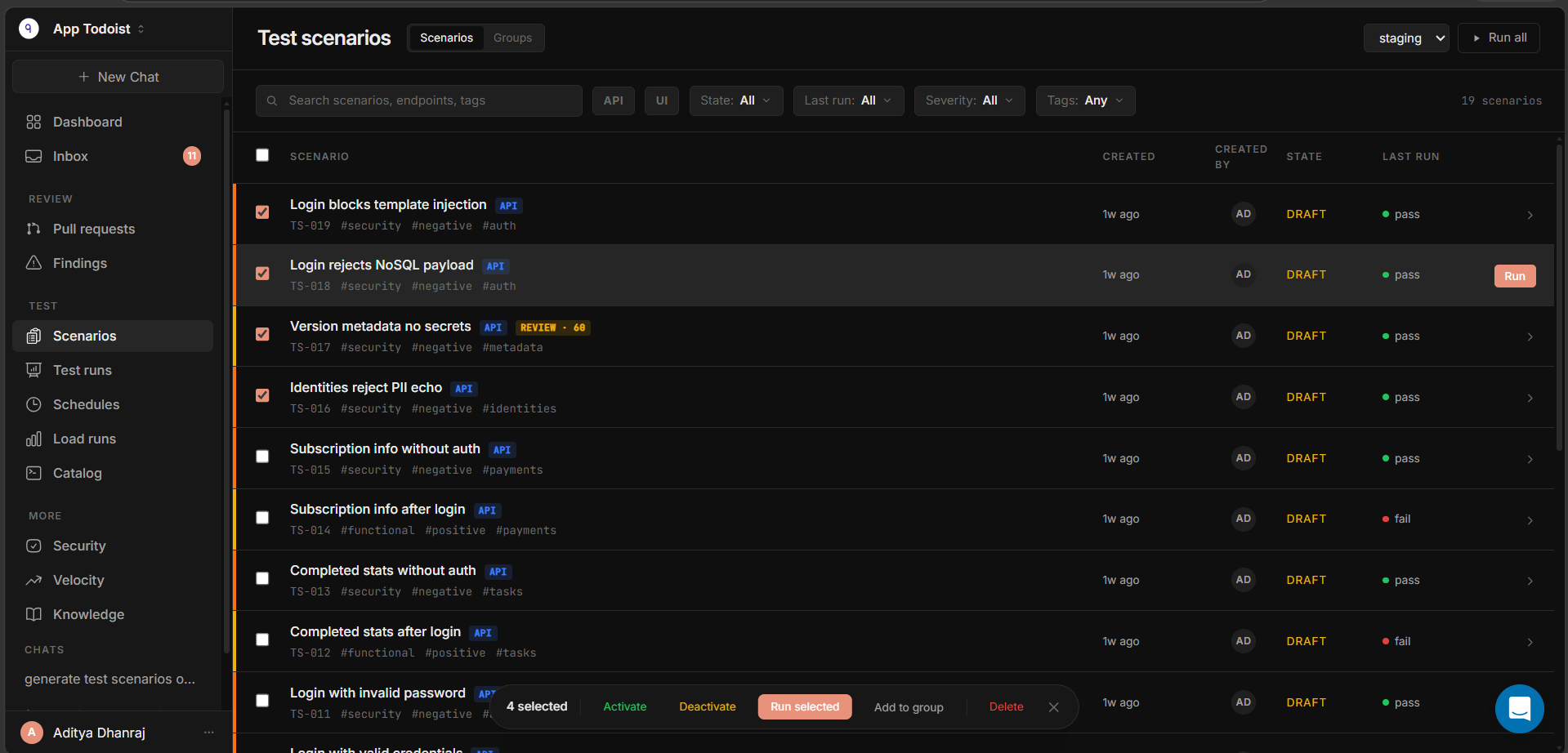
- Name: a readable name such as
Checkout smokeorNew user onboarding. - Mode: parallel for independent checks, sequential for dependent flows.
- Scenarios: the scenarios that should belong to the group.
Manage scenarios
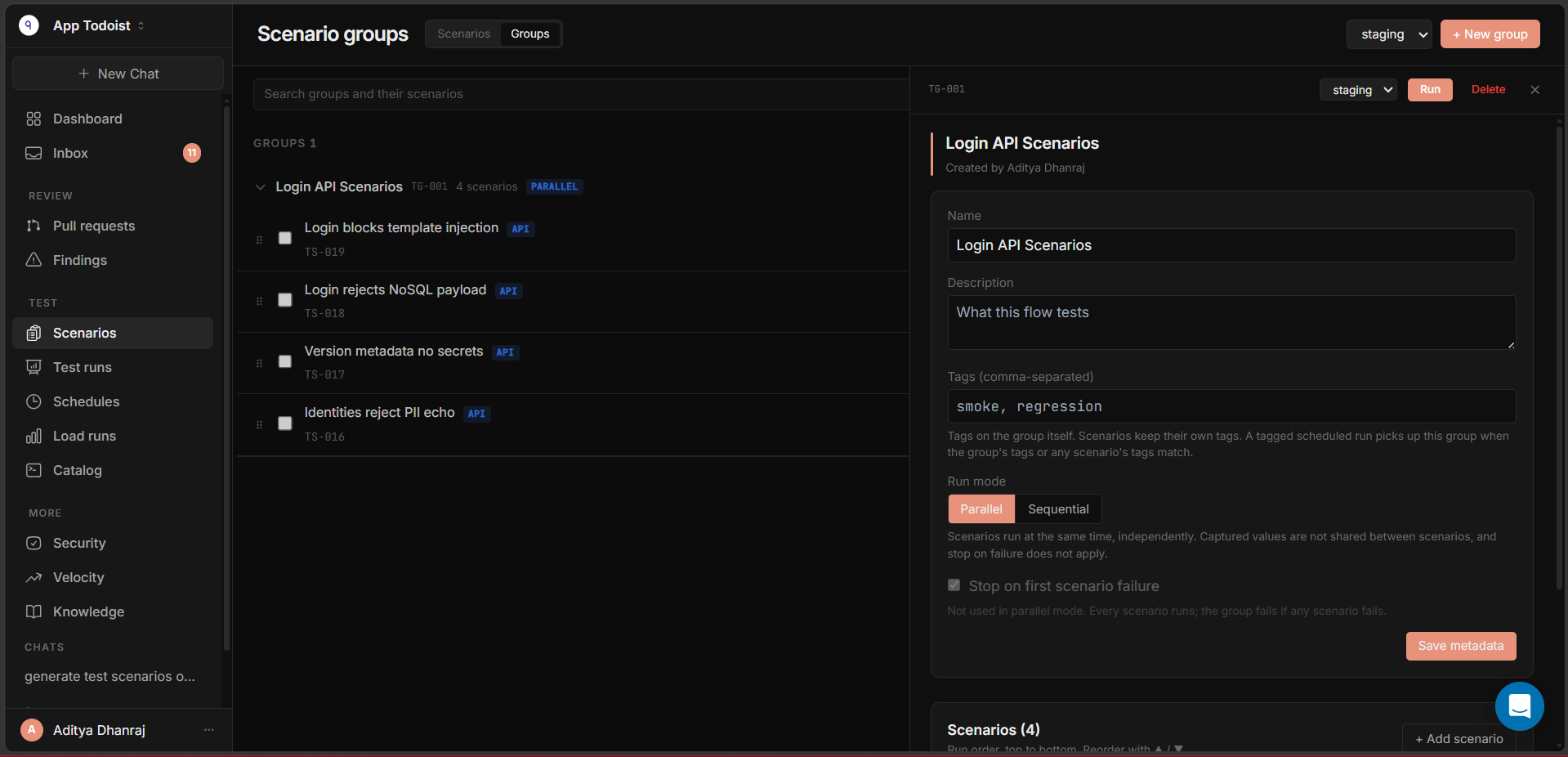
Inside a group, you can:- Add more scenarios.
- Remove a scenario from that group.
- Reorder scenarios.
- Change the group name, description, tags, run mode, and stop-on-failure setting.
- Delete the group without deleting the scenarios.
Run a group
You can run a group anywhere Qodex accepts a run scope:- From the Groups view with Run group.
- From a schedule.
- From a webhook or CI flow through the configured schedule or selected run scope.
- As part of the full active suite.
- As part of a tag-filtered run when the group tags or any scenario tags match.
Use CSV data with a group
A group can own one CSV data file. When it does, Qodex runs the whole group once per CSV row. In a sequential group, each row drives the full ordered flow before the next row starts. Captures reset between rows, so one row does not leak values into another. In a parallel group, each scenario and row combination is independent. Row values are still available as${columnName} variables, but scenarios do not share captures with each other.
Scenarios cannot keep individual CSV files once the group owns a CSV. Attach the data file to the group when the data should drive the whole workflow.
Search and organization
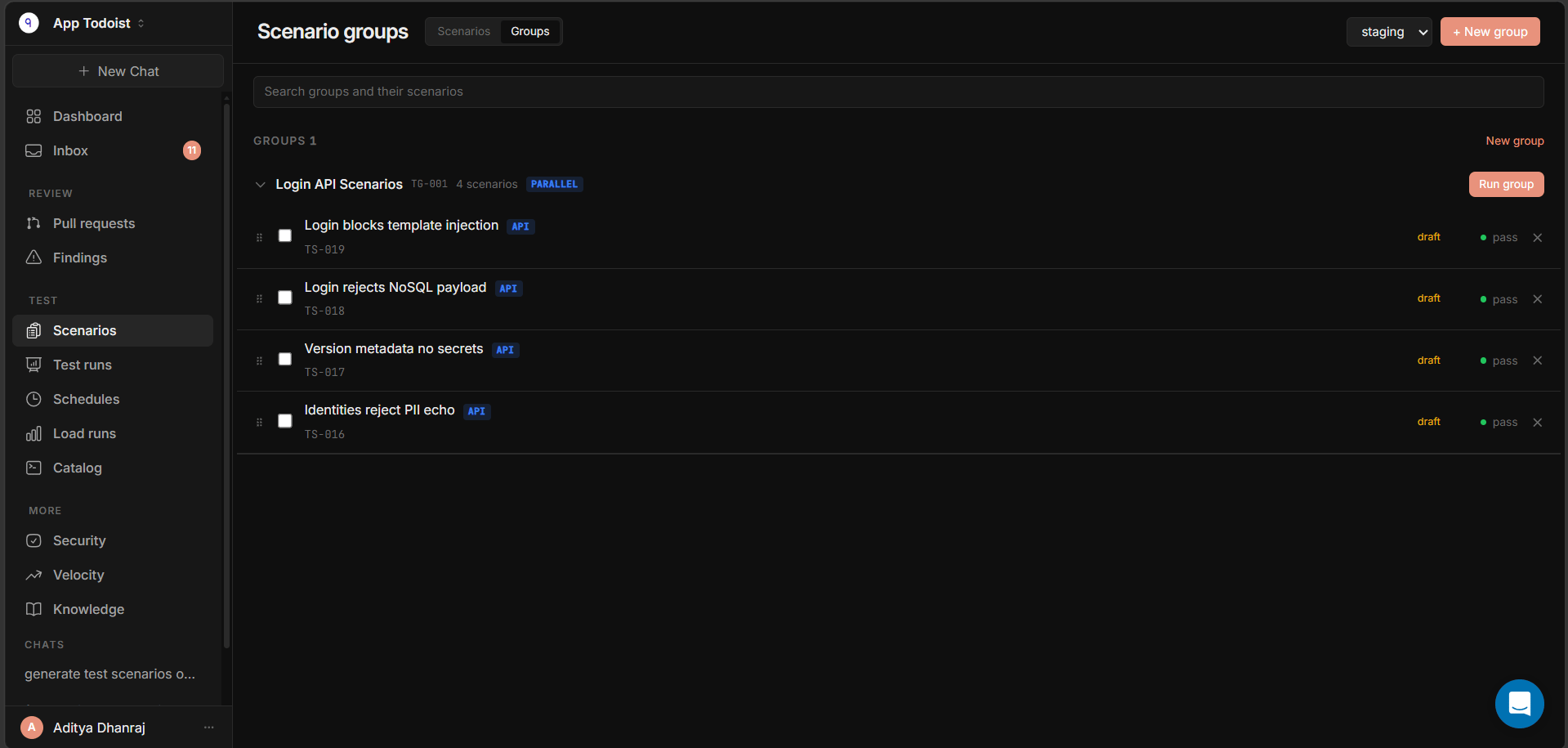
The Scenario groups view is built for navigation:- Search can match group names and scenarios inside groups.
- Search can also surface matches inside sub-folders, while the parent group keeps an accurate rolled-up scenario count.
- Groups show their test group id, such as
TG-003. - The group row shows scenario count, parallel mode, and CSV status when present.
- You can drag scenarios to reorder them inside the same group.
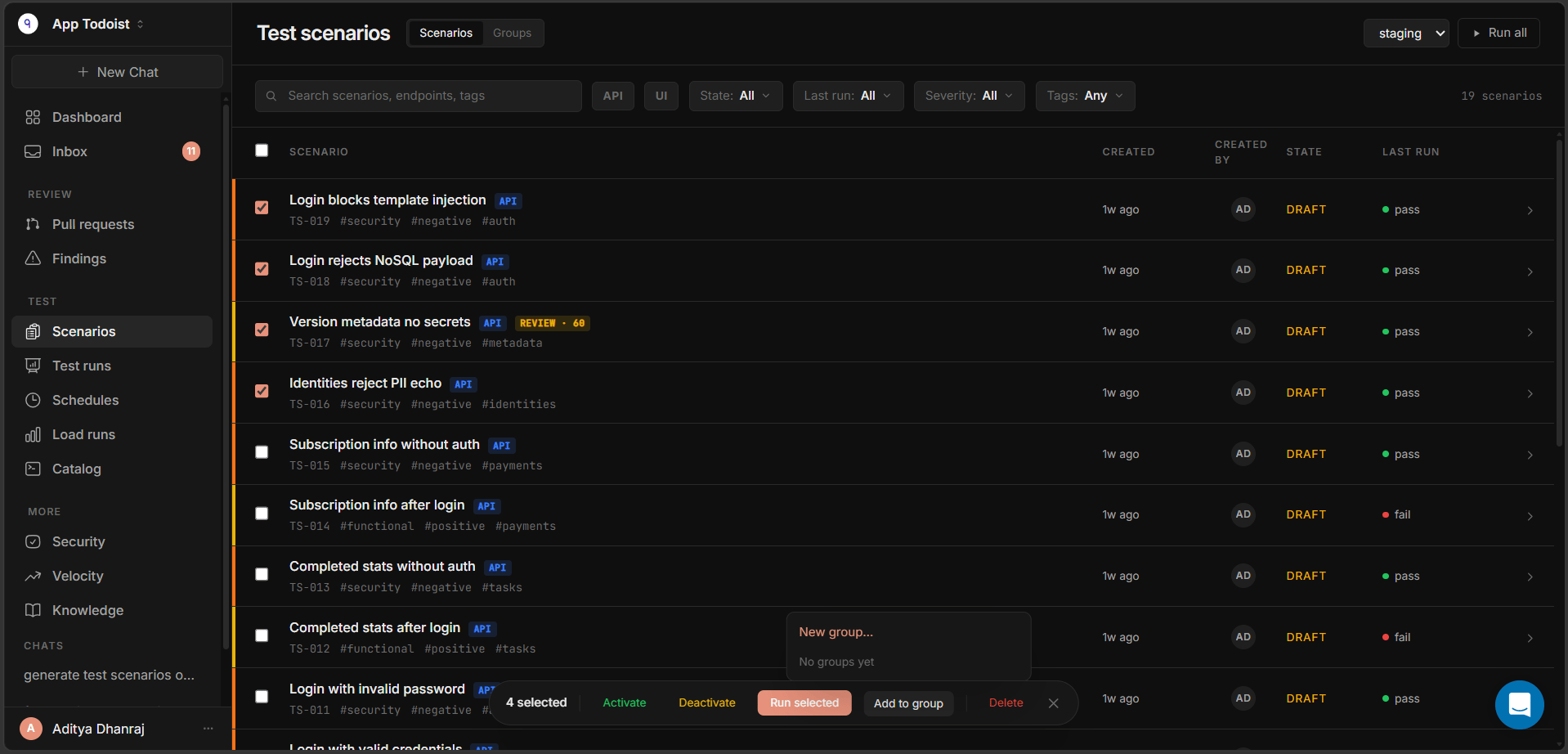
- Use Move to group when a scenario needs to join another valid group.
Common choices
Limits and caveats
- Parallel groups do not share captured values between scenarios.
- Stop-on-failure is ignored in parallel mode.
- Sequential membership is exclusive: a scenario in a sequential group cannot belong to another group.
- Sub-folder membership is exclusive inside its parent group.
- A scenario with its own CSV must detach that file before it can join a group.
- A group with no runnable scenarios cannot start a run.
Related
Run tests from the web app
Start manual runs for scenarios, selected rows, and groups.
Run tests on a schedule
Include groups in recurring smoke and regression runs.
Run the full suite
See how groups participate in project-wide runs.
Scenarios
Understand the reusable test unit that groups organize.