Playwright Codegen: Record and Clean Up a Test
Playwright codegen is the test generator built into Playwright: you run npx playwright codegen, click through your app in the browser it opens, and it writes the matching test code as you go. It prefers role, text and test ID locators. The recording replays your clicks, but it checks nothing until you add assertions, so treat it as a first draft of a test.
Checked with Playwright 1.63.0, read 4 October 2026. Every TypeScript and JavaScript file on this page ran as printed in an empty folder, and every output block is copied from that run's log. The Python file is the recorder's output, shown for comparison and not run.
If you would rather describe the flow than record it, Qodex drives the real app, brings back a screenshot of what broke, and saves the run as Playwright you own. See Qodex UI testing or try it on your app.
What Playwright codegen generates
Codegen opens two windows: a browser where you use the site, and the Playwright Inspector, which shows the code as it is written. In our recording, each click and each fill became one line. For each element, Playwright "will look at your page and figure out the best locator, prioritizing role, text and test id locators". If that locator matches more than one element, the generator refines it until it is unique. Source: the test generator guide, read 4 October 2026.
The default output is a Playwright Test file. The --target option switches it to plain JavaScript, Python, pytest, Java, JUnit or one of four C# flavours. What you get is code, not a saved macro, so you can edit it like any other test.
Two things a plain recording does not give you: checks on the result, unless you add them with the toolbar, and any structure beyond one long test. The rest of this page is about closing those two gaps.
Record a flow against a local demo app
Start in an empty folder. The demo needs Node and Playwright, nothing else:
npm init -y
npm install -D @playwright/test@1.63.0
npx playwright install chromium
Save this as demo-app.mjs. It is a sign-in page and a projects page that adds a project to a list. Any email and password sign you in, and the session lives in a cookie. Setting BROKEN=1 breaks the Create project button on purpose, so we can test the tests later.
// demo-app.mjs: a two-page app to record with Playwright codegen. Node built-ins only.
import { createServer } from 'node:http';
import { randomUUID } from 'node:crypto';

const sessions = new Set();

const login = `<!doctype html>
<title>Sign in</title>
<h1>Sign in</h1>
<form method="post" action="/login">
  <label>Email <input name="email" type="email" required></label>
  <label>Password <input name="password" type="password" required></label>
  <button type="submit">Sign in</button>
</form>`;

const projects = `<!doctype html>
<title>Projects</title>
<h1>Projects</h1>
<form id="new">
  <label>Project name <input name="name" required></label>
  <button type="submit">Create project</button>
</form>
<ul id="list"></ul>
<p role="status" id="status"></p>
<script>
  const broken = ${process.env.BROKEN === '1'};
  document.getElementById('new').addEventListener('submit', (e) => {
    e.preventDefault();
    if (broken) return; // BROKEN=1 simulates a regression: the button does nothing
    const name = e.target.name.value.trim();
    const li = document.createElement('li');
    li.textContent = name;
    document.getElementById('list').append(li);
    document.getElementById('status').textContent = 'Created ' + name;
    e.target.reset();
  });
</script>`;

function signedIn(req) {
  const m = /(?:^|; )sid=([\w-]+)/.exec(req.headers.cookie ?? '');
  return m !== null && sessions.has(m[1]);
}

const server = createServer((req, res) => {
  if (req.method === 'POST' && req.url === '/login') {
    // Demo only: any email and password signs in. A real app checks them.
    const sid = randomUUID();
    sessions.add(sid);
    res.writeHead(303, { location: '/projects', 'set-cookie': `sid=${sid}; HttpOnly; SameSite=Lax; Path=/` });
    return res.end();
  }
  if (req.url === '/projects' && !signedIn(req)) {
    res.writeHead(303, { location: '/' });
    return res.end();
  }
  const body = req.url === '/projects' ? projects : login;
  res.writeHead(200, { 'content-type': 'text/html' });
  res.end(body);
});

server.listen(4173, '127.0.0.1', () => console.log('demo app on http://127.0.0.1:4173'));
Start it in one terminal and leave it running:
node demo-app.mjsWhen it prints its address, open a second terminal in the same folder, point codegen at the app and save the output to a file:
npx playwright codegen -o tests/recorded.spec.ts http://127.0.0.1:4173In the browser window, sign in as ana@example.com with any password, type a project name, and click Create project. Then close the browser. This is the file codegen saved for that flow. To make the run repeat exactly, we drove the same recorder from a script instead of by hand:
import { test, expect } from '@playwright/test';

test('test', async ({ page }) => {
  await page.goto('http://127.0.0.1:4173/');
  await page.getByRole('textbox', { name: 'Email' }).click();
  await page.getByRole('textbox', { name: 'Email' }).fill('ana@example.com');
  await page.getByRole('textbox', { name: 'Password' }).click();
  await page.getByRole('textbox', { name: 'Password' }).fill('example-password');
  await page.getByRole('button', { name: 'Sign in' }).click();
  await page.getByRole('textbox', { name: 'Project name' }).click();
  await page.getByRole('textbox', { name: 'Project name' }).fill('Checkout redesign');
  await page.getByRole('button', { name: 'Create project' }).click();
});
Every locator is a role locator with the accessible name taken from the label or the button text. The click before each fill is there because a person clicked into the field first. For what those role locators match and how the name option behaves, see our Playwright getByRole reference.
The same recording with --target python-pytest looks like this. We did not run it; it needs the Python package of Playwright and pytest:
import re
from playwright.sync_api import Page, expect

def test_example(page: Page) -> None:
    page.goto("http://127.0.0.1:4173/")
    page.get_by_role("textbox", name="Email").click()
    page.get_by_role("textbox", name="Email").fill("ana@example.com")
    page.get_by_role("textbox", name="Password").click()
    page.get_by_role("textbox", name="Password").fill("example-password")
    page.get_by_role("button", name="Sign in").click()
    page.get_by_role("textbox", name="Project name").click()
    page.get_by_role("textbox", name="Project name").fill("Checkout redesign")
    page.get_by_role("button", name="Create project").click()
The recorder toolbar: record, pick locator, assertions
By default, codegen starts a new recording as soon as it opens. The controls sit in the toolbar over the page and in the Inspector. Sources: the test generator guide and best practices, read 4 October 2026.
Record. Press it to stop recording. Press it again to resume.
Pick locator. Appears once recording is stopped. Hover over the page to see the locator under each element, click one, and its code lands in the field beside the button. You can edit it there before you copy it.
Assert visibility, assert text, assert value. Click one, then click an element. The guide describes them as asserting that an element "is visible", "contains specific text" and "has a specific value".
Copy and clear. Copy puts the generated code on your clipboard. Clear empties it so you can record again.
The assertion buttons close part of the gap described below. Recording "assert text" on the status line after Create project gives you the one check that matters in this flow. Version 1.55 also added automatic toBeVisible() assertions for common interactions, switched on in the Codegen settings UI. Source: the release notes, read 4 October 2026.
For locators you build by hand rather than record, our Playwright locator builder runs in the browser.
Playwright codegen options
This is what npx playwright codegen --help printed on 1.63.0 in our run, trimmed to the options you are likely to reach for. The usage line is npx playwright codegen [options] [url], and the URL is optional.
| Option | What it does | Example value | Help default | Use it when |
|---|---|---|---|---|
-o, --output | Saves the generated script to a file | tests/flow.spec.ts | not stated | You want the file, not the clipboard |
--target | Language to generate | python-pytest | playwright-test | Your suite is not Playwright Test |
-b, --browser | Browser to record in | webkit | chromium | A bug shows in one engine only |
--device | Emulates a device | "iPhone 11" | not stated | The flow differs on a phone layout |
--viewport-size | Sets the viewport in pixels | "1280, 720" | not stated | You need one exact window size |
--color-scheme | Emulates light or dark | dark | not stated | The flow differs in dark mode |
--lang, --timezone, --geolocation | Emulates locale, time zone and location | "Europe/Rome" | not stated | Text, dates or maps depend on locale |
--test-id-attribute | Attribute used for test ID selectors | data-qa | not stated | Your app uses its own test attribute |
--save-storage, --load-storage | Saves or restores cookies and storage | auth.json | not stated | You record many flows behind sign-in |
--http-credentials | HTTP Basic Authentication | "user:pass" | not stated | The site sits behind Basic Auth |
--save-har | Saves network activity as a HAR file | flow.har | not stated | You want the network traffic too |
Two notes on that list. If your suite sets testIdAttribute in its config, pass the same name to --test-id-attribute, or the recorder will write test ID locators your tests do not use. And --http-credentials credentials "are included in the generated code", so they end up in the file you commit. The flag is new in 1.63. Sources: the test generator guide and the release notes, read 4 October 2026.
Record from VS Code
The Playwright extension for VS Code wraps the same generator. Click Record new in the Testing sidebar: it creates test-1.spec.ts and opens a browser, and your actions are written straight into that file. The same three assertion buttons sit in the browser toolbar.
Record at cursor adds steps to a test you already have. Put the cursor where the new steps belong and click it. If no browser window is open, the guide says to run the test once with "Show browser" checked first. Pick locator in the sidebar works like the Inspector version, and Enter copies the picked locator to your clipboard. Source: the test generator guide, read 4 October 2026.
Record at cursor is the better habit for an existing suite. You record only the new steps, inside a test that already has its setup and its checks.
Why a raw recording is not a test yet
Run the recording as it is. With no config file, Playwright picks up the test from the tests folder:
$ npx playwright test

Running 1 test using 1 worker

  ✓  1 tests/recorded.spec.ts:3:5 › test (235ms)

  1 passed (562ms)
Now stop the demo app with Ctrl+C and start it again with the regression switched on, so Create project does nothing:
BROKEN=1 node demo-app.mjsRun the same recording again, and it still passes:
$ npx playwright test

Running 1 test using 1 worker

  ✓  1 tests/recorded.spec.ts:3:5 › test (258ms)

  1 passed (558ms)
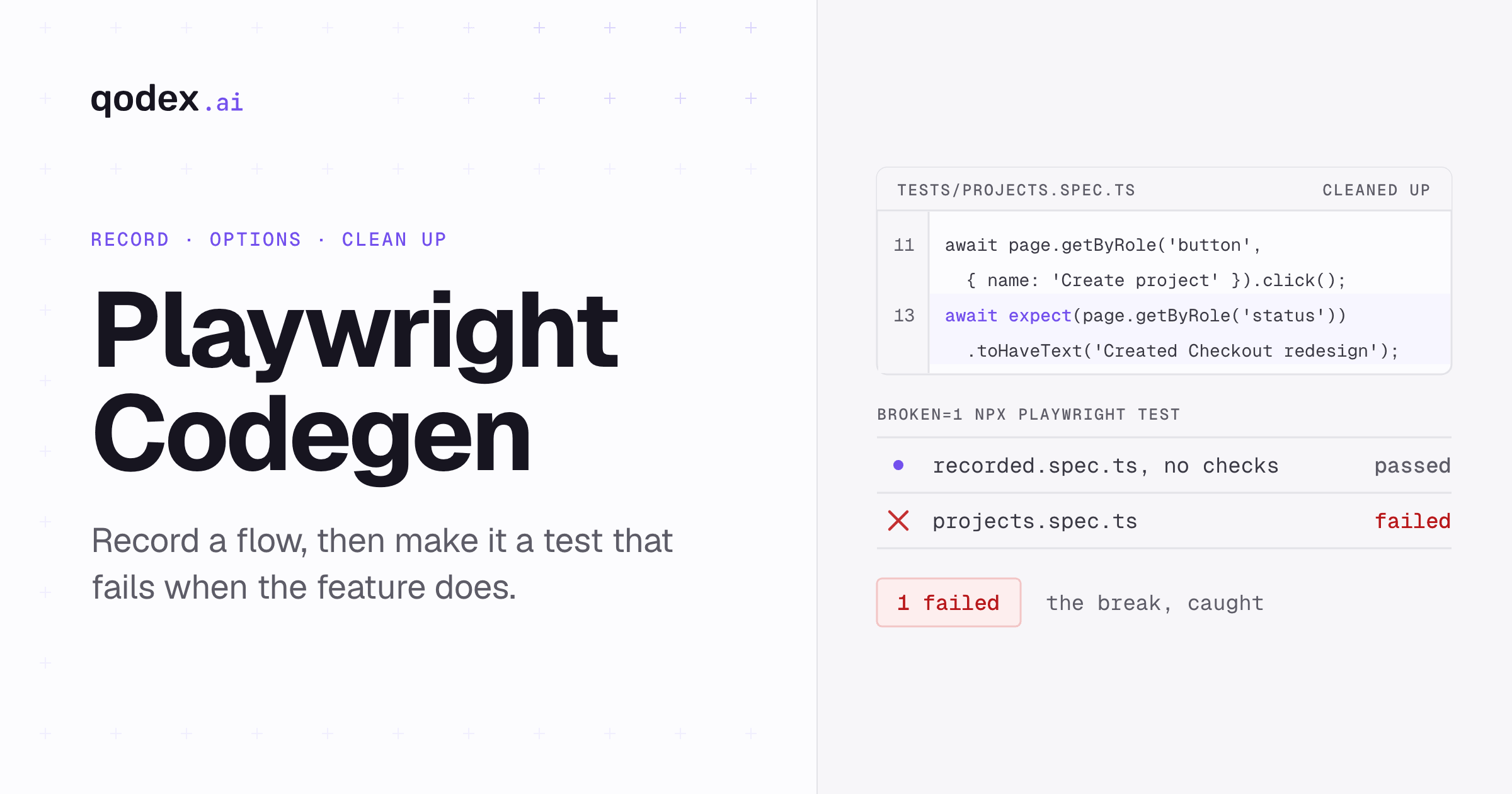
Nothing in the file asks whether a project was created. Clicking a button that does nothing is still a successful click. That is the main risk with recorded tests: a suite of them goes green while a feature is broken. Our post on why record and playback falls short covers the wider maintenance cost.
Turn the recording into a suite test
Four edits turn the recording into something worth keeping. Stop the demo app first, because the config below starts it for each run.
Move the address into config. Set
baseURLonce and callpage.goto('/'), so the same test runs against local, staging or a preview.Let Playwright start the app.
webServerstarts the demo and waits for the URL before the first test.Delete the recorded clicks before fills. The cleaned test below has none, and it still passes.
Assert the outcome. Check the page you land on, the status message and the list. Playwright's best practices page recommends web-first assertions such as
await expect(locator).toBeVisible(), which wait and retry. Source: best practices, read 4 October 2026.
Save this as playwright.config.ts:
import { defineConfig } from '@playwright/test';

export default defineConfig({
  testDir: './tests',
  use: { baseURL: 'http://127.0.0.1:4173' },
  webServer: {
    command: 'node demo-app.mjs',
    url: 'http://127.0.0.1:4173',
  },
});
And this as tests/projects.spec.ts, next to the recording:
import { test, expect } from '@playwright/test';

test('a signed-in user can create a project', async ({ page }) => {
  await page.goto('/');
  await page.getByRole('textbox', { name: 'Email' }).fill('ana@example.com');
  await page.getByRole('textbox', { name: 'Password' }).fill('example-password');
  await page.getByRole('button', { name: 'Sign in' }).click();
  await expect(page.getByRole('heading', { name: 'Projects' })).toBeVisible();

  await page.getByRole('textbox', { name: 'Project name' }).fill('Checkout redesign');
  await page.getByRole('button', { name: 'Create project' }).click();

  await expect(page.getByRole('status')).toHaveText('Created Checkout redesign');
  await expect(page.getByRole('listitem')).toHaveText(['Checkout redesign']);
});
Run the suite with the switch set. In our run, BROKEN=1 reached the app that the config started:
$ BROKEN=1 npx playwright test

Running 2 tests using 2 workers

  ✓  2 tests/recorded.spec.ts:3:5 › test (258ms)
  ✘  1 tests/projects.spec.ts:3:5 › a signed-in user can create a project (5.2s)

    Error: expect(locator).toHaveText(expected) failed

    Locator:  getByRole('status')
    Expected: "Created Checkout redesign"
    Received: ""
    Timeout:  5000ms
    ...

  1 failed
  1 passed (5.6s)
The recording still passes. The cleaned test fails on the status line and names the empty value it found. We trimmed the call log and code frame from that output. Run it again without the switch and both pass:
$ npx playwright test

Running 2 tests using 2 workers

  ✓  2 tests/projects.spec.ts:3:5 › a signed-in user can create a project (161ms)
  ✓  1 tests/recorded.spec.ts:3:5 › test (259ms)

  2 passed (670ms)
Once a test like this exists, delete the raw recording. It adds run time and no protection. To pick the right matcher for each check, see the Playwright assertions reference.
Reuse sign-in state while recording
Signing in at the start of each recording is slow. Codegen can save the browser's state when the session ends and load it next time. Source: the test generator guide, read 4 October 2026.
node demo-app.mjs
npx playwright codegen --save-storage=auth.json http://127.0.0.1:4173
npx playwright codegen --load-storage=auth.json http://127.0.0.1:4173/projects
Start the demo app again first, in its own terminal, because the test run above stopped it. The first codegen command records your sign-in and writes cookies, localStorage and IndexedDB data to auth.json when you close the browser. The second starts the next recording already signed in. With this demo app, sessions live in memory, so a restart of the app logs that file out.
Treat auth.json as a secret. The guide says to use it locally only and add it to .gitignore, because it holds session data. Playwright's authentication guide adds that stored state "may contain sensitive cookies and headers that could be used to impersonate you or your test account". Source: authentication, read 4 October 2026.
Recording state and test state are separate jobs. In the suite, sign in once in a setup project or a fixture and share the saved state with the tests that need it. The authentication guide says a shared account suits tests that do not change server-side state; tests that do change it need one account each. Our Playwright fixtures guide shows the fixture side of that.
Codegen and Playwright Test Agents
Codegen is not Playwright's only way to produce tests. Version 1.56 introduced Playwright Test Agents, three agent definitions for an LLM. A planner "explores the app and produces a Markdown test plan". A generator "transforms the Markdown plan into the Playwright Test files". A healer "executes the test suite and automatically repairs failing tests". npx playwright init-agents writes the definitions for VS Code, Claude Code or opencode. Source: the release notes, read 4 October 2026.
The two answer different questions. Codegen records what you did, step for step, with no model in the loop. The agents decide what to test and write it, and their output needs the same review for missing checks. Either way, a generated test is a draft until it asserts the result a user would notice.
Conclusion
Use codegen to get the locators and the steps for free, then do the part it skips. Move the address into config, delete the noise, and add assertions that fail when the feature fails. Check that they do by breaking the feature once on purpose, as the demo above does.
Frequently Asked Questions
What does npx playwright codegen do?
It opens a browser and the Playwright Inspector. As you click and type in the browser, it writes the matching Playwright code, using role, text and test ID locators where it can. You can copy the code from the Inspector or save it with -o.
How do I save the generated test to a file?
Pass -o or --output with a file name, for example npx playwright codegen -o tests/flow.spec.ts http://127.0.0.1:4173. Without it, copy the code from the Inspector.
Which languages can Playwright codegen generate?
In 1.63.0 the help lists javascript, playwright-test, python, python-async, python-pytest, csharp, csharp-mstest, csharp-nunit, csharp-xunit, java and java-junit. The default is playwright-test.
Does codegen add assertions automatically?
Not from the clicks in a plain recording. You add them with the assert visibility, assert text and assert value buttons. Since 1.55, a Codegen setting can also add automatic toBeVisible() assertions for common interactions. Neither one knows which outcome matters, so review what you got.
Why does my recorded test pass when the feature is broken?
Because it only replays actions. A click on a button that does nothing still succeeds. Add an assertion on the result, such as a status message or a new list row, and break the feature once to see the test fail.
How do I record a mobile layout with codegen?
Pass --device with a device name, for example --device="iPhone 11", or set --viewport-size. The device option sets the viewport size and user agent among other settings. Record against the layout your tests will run in.
How do I record without signing in again?
Record the sign-in once with --save-storage=auth.json, then start later sessions with --load-storage=auth.json. Keep that file out of git, because it holds session cookies.
Is Playwright codegen the same as Playwright Test Agents?
No. Codegen turns your own clicks into code with no model involved. Test Agents, added in 1.56, are agent definitions that guide an LLM to plan tests, write them and repair failing ones.