UI Testing: Types, Tools, Examples & Best Practices
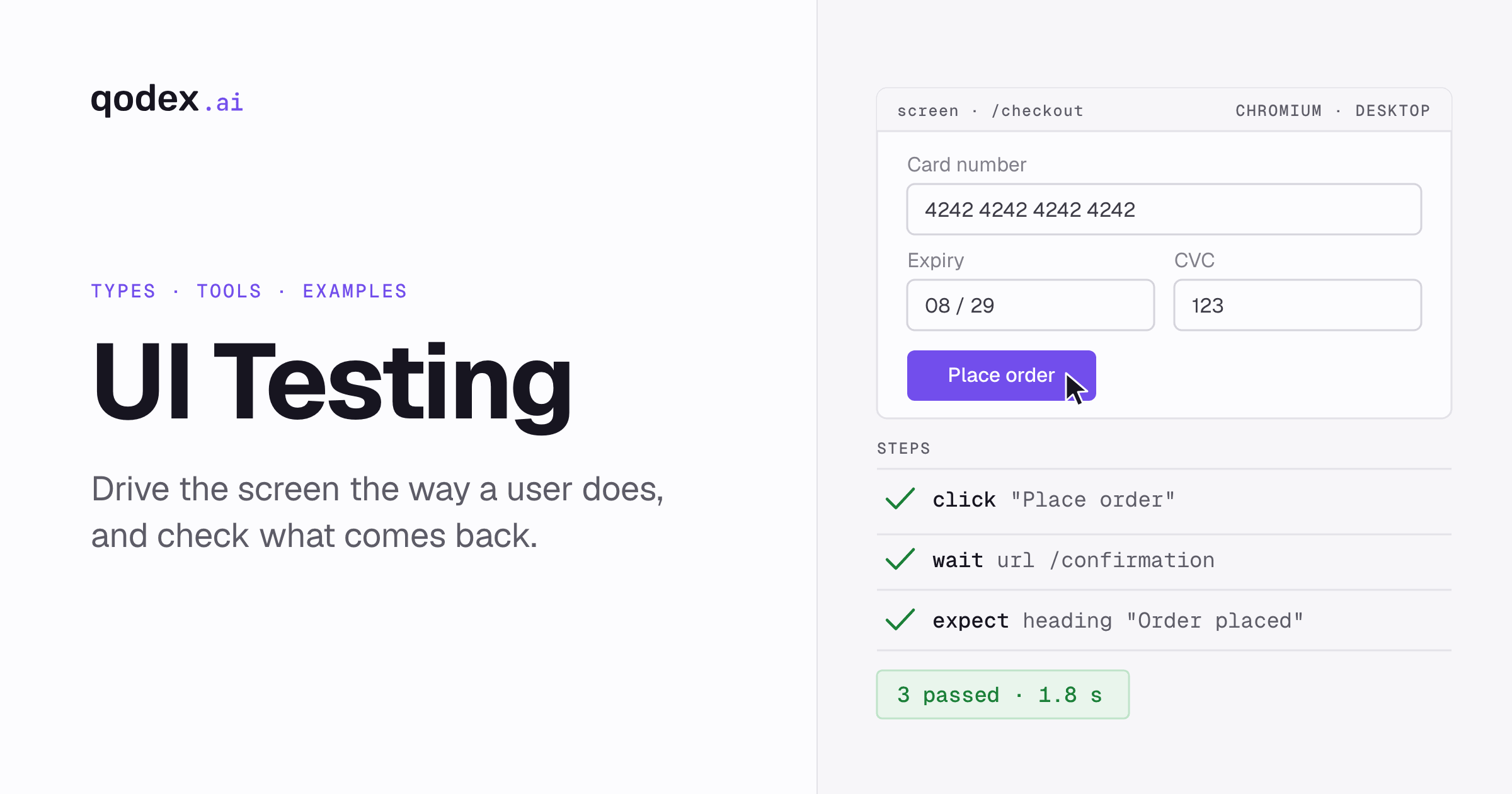
UI testing checks whether the parts of an application that people see and use behave correctly. This guide covers automated UI testing, when UI test automation earns its keep, how web UI testing differs from mobile, how the main test types differ, how to pick tools, and which habits keep repeat runs honest. It ends with a Playwright test you can run today and a directory of every UI testing guide on this site.
UI means user interface: every screen, control and piece of text a person touches. GUI means graphical user interface, the visual part of that. Those two words get used as if they were the same thing, and the difference decides which test you write.
UI testing: what it checks and why it matters
A UI test asks two questions about the same screen. Does it look right, and does it do the right thing when someone uses it? A button can render perfectly and still fire the wrong request. It can fire the right request and sit half off the edge on a narrow phone. Both are defects a user meets, and only a test that drives the interface finds either one.
The automated version of the job has a plain definition. UI testing runs predefined checks against the interface of an application and confirms that elements such as buttons, forms, menus and links do what they are supposed to do. Machines repeat that well, which is why most teams end up automating the parts they run more than once.
Four reasons it gets its own layer:
It is the only layer that matches what a user does. Everything below it is an assumption about how the pieces fit together.
Unit tests pass by design. They mock their dependencies, so a broken contract between two real parts stays invisible until something drives the whole screen.
The flows that pay for the product live here. Sign-up, login, search, checkout. A silent break in one of those costs more than a hundred failing unit tests.
The evidence is readable. A screenshot of the wrong total is something a product manager can act on. A stack trace is not.
UI testing versus GUI, visual, component and end to end testing
Five terms cover overlapping ground. The table sets the boundaries, and the paragraph after it deals with the one that trips people up most.
| Term | What it checks | Where it stops | Go deeper |
|---|---|---|---|
| UI testing | Whether the interface a person sees or operates behaves correctly, shows the right state and stays usable. | It does not verify logic in services the screen never reaches. | This guide |
| GUI testing | The graphical part of the same job: buttons, fields, menus, icons, windows, text and layout. | Interfaces with no graphics, such as a command line, sit outside it. | This guide |
| Visual testing | Whether the rendered screen looks correct: layout, typography, color, spacing, clipping and responsive states. | It judges pixels, not behavior. A page can look perfect and do nothing. | Visual regression testing |
| Component testing | One component rendered on its own, with its output and its interactions. | No full application flow, no real backend, no routing. | Cypress vs React Testing Library |
| End to end testing | A complete user workflow across interface, backend, database and integrations. | Slow and expensive to keep green, so it suits a small set of flows. | End to end testing guide |
The boundary that matters day to day is UI testing versus end to end testing. A UI test can stop at the screen: fill the field, click the control, assert on what appears. An end to end test refuses to stop there. It follows the same click into the API, the queue, the database and back, and it fails when any of them is wrong. That makes end to end tests the better evidence and the worse maintenance bill, which is why teams run a handful of them and many UI tests. The full treatment lives in our end to end testing guide.
GUI testing is not a rival to UI testing. It is the graphical subset of it. If someone hands you a GUI testing checklist, it is a UI testing checklist with the non-visual parts left out.
Web UI testing versus mobile UI testing
Web UI testing covers browser-based controls, navigation, forms, dynamic content, responsive layouts and browser compatibility. It runs against a page in a browser engine, so the variables are the engine, its version, the viewport and the network.
A web run should cover:
Responsiveness across widths. Phone, tablet and desktop, in portrait and landscape, with elements adjusting rather than overlapping.
Readability on small screens. Text and images aligned and legible once the layout collapses to one column.
Browser coverage. Chrome, Firefox, Safari and Edge, plus the versions your users actually run.
Consistent JavaScript and CSS. The same page behaving the same way on each engine, not just rendering without an error.
Mobile UI testing checks native or mobile-web interfaces and adds variables a browser never has. Screen sizes and pixel densities, orientation changes mid-flow, two operating systems on different release cycles, touch gestures instead of a pointer, runtime permission prompts, and network conditions that swing from office wifi to a train tunnel. Touch is the one teams forget: a control that is easy to click with a mouse can be too small or too close to another control under a thumb.
The practical split: run the web suite on browser engines for every change, and reserve real devices for the things emulation cannot answer, such as a bug that only reproduces on one handset. Cross-browser services are the usual way to get that breadth, and our Browserling alternatives guide compares them.
Automated UI testing: when to use UI test automation
UI test automation means code or a tool repeats defined actions and assertions without a person executing each step. It fits four situations, and they are all about repetition.
You run the same test over and over. The second run is where automation starts paying, and it never stops paying.
The app updates often and you need feedback fast. A suite that finishes before the pull request is reviewed changes what gets merged.
You test across several browsers or devices. The same flow times four browsers is the definition of work a machine should do.
The app is stable and you are guarding regressions. Automating a screen that changes weekly buys you a maintenance job, not a safety net.
Manual UI testing keeps the work where judgment is the point. Exploring a feature nobody has used yet, deciding whether a flow feels confusing, catching the thing that is technically correct and obviously wrong. If you cannot write down the expected result before you run the test, a person should run it. Our manual testing versus automation testing comparison covers the trade in full.
Be honest about the cost on the automated side. A UI suite is code, and code needs maintenance. Recorded flows are the fastest way in and the fastest way into trouble, because the selectors they capture break on the next redesign. Our guide on why record and playback falls short explains where that road ends. To record a flow and then turn it into a test that catches a broken feature, follow our Playwright codegen walkthrough.
UI testing techniques and test types
These are the runs a UI suite is usually made of. Most teams need several of them, not one.
Functional checks of interface elements. Buttons trigger the correct action, forms process the data they are given, menus navigate to the right page, links resolve. This is the base layer and the largest part of most suites.
Cross-browser testing. The same checks on different engines, versions and viewports, looking for behavior or rendering that differs. Browser-specific defects are real and they hide well.
Responsive and device testing. The same screen from a smartphone to a desktop, in both orientations, with touch targets that work under a thumb.
Accessibility testing. Keyboard navigation, assistive technology, clear semantics, readable contrast and visible focus. Start with the tooling in our accessibility testing tools roundup.
Visual regression testing. Capture the current screen, compare it with an approved baseline, flag what changed without anyone asking for it. See ways to automate visual regression testing.
Smoke testing. A small, fast set that proves a new build's basic flows work before anything deeper runs. Details in understanding smoke testing.
Regression testing. Re-running established checks after a change to catch behavior that used to work. Our guide on building an effective regression suite covers how to keep it from growing without limit.
Component testing. One component in isolation, checked for output and interaction before it goes anywhere near a full flow.
UI test scenarios and test case examples
A scenario is one sentence about what a person is trying to do. A test case is a row underneath it: what you do, and what has to be true afterwards. Write the scenario first. If you cannot say it in a sentence, the test will not be readable either.
Take the most common scenario in software: a user signs in.
| Check | What you do | What has to be true |
|---|---|---|
| Field accepts input | Type an address into the email field | The characters appear and the field holds them |
| Invalid input is caught | Enter an address with no @ sign | An error message appears and the form does not submit |
| Password is masked | Type into the password field | The characters are hidden, not shown in plain text |
| Weak password is flagged | Enter a short or common password | A warning appears before submission |
| Action is findable | Look at the form without scrolling | The Sign in button is visible and clickable |
| Wrong credentials fail clearly | Submit a valid address with the wrong password | An error explains the failure without revealing which field was wrong |
Two more scenario shapes cover most of what is left:
Form validation. Fields accept valid data, reject invalid input, and show a message that says what to fix. The rejection path is the one teams skip and users find.
Navigation flow. A user moves through the application without hitting a broken link or a dead end. Every route that appears in the interface goes somewhere real.
For a worked inventory, our login page test cases guide lists positive, negative, security, usability and recovery checks, and test cases for search functionality does the same for search inputs, results, filters and edge cases.
A runnable UI test in Playwright
Every UI test does the same five things regardless of tool. Navigate to a known state, fill a control, perform the action, assert on what a user can see, and save evidence. The example below is Playwright against its public TodoMVC demo, so you can run it without wiring it to your own app first.
Install and run
npm init playwright@latest
npx playwright test tests/ui-testing-example.spec.js
npx playwright show-trace test-results/*/trace.zip
The test
import { test, expect } from '@playwright/test';

test('adds a visible todo', async ({ page, context }, testInfo) => {
  await context.tracing.start({ screenshots: true, snapshots: true });

  try {
    await page.goto('https://demo.playwright.dev/todomvc/');

    const todoInput = page.getByPlaceholder('What needs to be done?');
    await todoInput.fill('Review checkout flow');
    await todoInput.press('Enter');

    const savedTodo = page.getByTestId('todo-title');
    await expect(savedTodo).toHaveText('Review checkout flow');
  } finally {
    await page.screenshot({
      path: testInfo.outputPath('todo-created.png'),
      fullPage: true,
    });
    await context.tracing.stop({ path: testInfo.outputPath('trace.zip') });
  }
});
Read it as the five steps. The goto call puts the app in a known state. The fill call enters data through the same control a person uses. The press call submits it. The expect call is the verdict, and it asserts on visible text rather than on internal state, which is what makes it a UI test. The finally block saves a screenshot and a trace whether the assertion passed or failed, which is the part most first suites leave out.
What a failure looks like
Suppose the application saves Review checkout instead of Review checkout flow. The visible assertion fails and the runner prints what it wanted against what it got:
Error: expect(locator).toHaveText(expected) failed

Locator: getByTestId('todo-title')
Expected string: "Review checkout flow"
Received string: "Review checkout"

Screenshot: test-results/.../todo-created.png
Trace:      test-results/.../trace.zip
Three artifacts, three jobs. The assertion is the verdict: something a user would see is wrong. The screenshot shows the final state, which is usually enough to decide whether it is a real bug or a stale test. The trace carries the browser actions, DOM snapshots, network activity and screenshots, so you can tell whether the wrong text came from the form action, the page logic or the request behind it. Without the last two, a red build tells you something broke and nothing else.
UI testing tools: selection criteria and comparison
The right choice depends on your project requirements, your team's expertise and what it has to integrate with. Those three fields are the start of the list, not the whole of it. Score candidates on nine:
Browser and device coverage. Which engines, which versions, and real hardware or emulation.
Language and team fit. A framework in a language nobody on the team writes becomes one person's project.
Debugging artifacts. Screenshots, traces, videos and network logs on failure, not just a red line.
Continuous integration support. Headless runs, parallel execution and a report your pipeline can read.
Maintenance model. Who fixes the test when a selector changes, and how fast.
Speed. How long a full run takes, because a suite nobody waits for is a suite nobody trusts.
Authoring effort. How much work it is to add the hundredth test, not the first.
Ownership of the output. Whether you keep runnable code if you stop paying.
Cost. The license, the parallel runs and the engineering time, in that order of surprise.
Tools fall into four groups. Pick the group first, then the tool.
| Group | What you get | What it asks of you | Where to compare |
|---|---|---|---|
| Code frameworks | A library that drives a browser from your own code, such as Playwright, Selenium or Cypress. | Engineering time to write and maintain the suite. | Playwright alternatives, Selenium alternatives |
| Browser and device clouds | Browsers, versions and real hardware you do not have to own. | You still write every test yourself. | BrowserStack alternatives |
| Managed and AI platforms | Test authoring and triage handled for you. | Trust in someone else's suite, and a check on whether you keep the code. | Momentic alternatives, testRigor alternatives |
| Framework pickers | A structured comparison when you already know you want code. | An hour of reading before you commit the team. | 10 best UI testing tools and how to choose |
This table is deliberately short. The full feature-by-feature comparisons live on the pages it links to, and duplicating them here would only give you two versions to keep in sync.
UI testing tools and E2E testing tools
The same tool often runs both, so the two lists look similar. They are not. UI testing tools are judged on how well they drive a browser: locators, waiting, rendering, screenshots. E2E testing tools are judged on everything around the browser as well: setting up data, orchestrating services, running against an environment that has a real database behind it, and reporting a failure that could have come from any layer.
If your question is which browser driver to standardize on, read the UI comparisons above. If your question is how to test a workflow that crosses four services, start with our best E2E testing tools and frameworks guide, which separates platforms from code frameworks before it compares anything.
Common UI test failures and how to fix them
Most red builds in a UI suite are not bugs in the product. Knowing which is which is the difference between a suite people trust and one they mute.
The selector broke, not the app. A class name changed and forty tests went red. Fix it by choosing locators on purpose: test ids and accessible roles survive a redesign, and CSS paths do not. Our guide to element locators covers how to pick them.
The test raced the page. The assertion ran before the content arrived, so it fails on a slow machine and passes on yours. Wait for the state you care about, never for a fixed number of seconds.
Error paths were never tested. Invalid input, a message that contradicts the one on the next screen, or a form that spins forever when the network drops. Add a case for each: an error appears, it is clear, and it says the same thing everywhere.
It only fails on one browser. A rendering or scripting difference on one engine, invisible in local Chrome. This is what the cross-browser run is for.
Test data drifted. The account the suite logs in with changed state, so the test asserts on something that is no longer there. Create what the test needs, or reset it, rather than borrowing it.
The failure came with no evidence. A red line and no screenshot means someone reproduces it by hand. Save artifacts on every run, in a block that executes even when the assertion throws.
UI testing best practices
Assert on what a user can see. Visible text and visible state. Reaching into internal state turns a UI test into a slow unit test.
Write the scenario as one sentence first. If the sentence needs an "and then also", it is two tests.
Choose locators deliberately. Test ids and roles first, text second, CSS structure last. For the exact signature, every option and strict mode fixes, use the Playwright getByRole reference.
One outcome per test. A test that checks six things reports one failure and hides five.
Save a screenshot and a trace every run. Storage is cheaper than reproducing a failure by hand.
Keep a small smoke set separate. A few minutes of critical flows on every commit, the full suite less often.
Cover the rejection paths. Invalid input, wrong credentials, empty results, dropped network. That is where users actually get stuck.
Run on more than one browser before release. Not on every commit, but not never either.
Delete tests that no longer describe a real flow. A suite is not an archive. Every test you keep, you maintain.
Fix a flaky test or remove it the same week. One test that fails at random teaches the whole team to ignore red.
If an older test uses page.waitForSelector(), use our Playwright waitForSelector reference to replace it with locator auto-waiting or expect.
UI testing guides by topic
Everything we have written on UI and end to end testing, grouped by the question it answers.
Foundations and implementation
End-to-End Testing: Types, Process and Best Practices. What an end-to-end test covers, its types, the seven-step process, and a runnable Playwright checkout.
Automating UI Testing with Selenium. Covers Selenium setup, selectors, scripts and maintenance practices.
Element Locators via Chrome Extensions: A Guide. Shows how to inspect and choose browser element locators.
Playwright Locators: Builder and Reference. Paste HTML, get the recommended locator with a strictness check, and copy TypeScript or Python.
Record and Playback Testing: Why It Does Not Scale. Explains why recorded selector flows become hard to maintain.
How To Do Electron App Testing. Covers testing desktop applications built with Electron.
Playwright getByRole: Options, Examples, Fixes. The full signature, every option with its default, runnable examples and the fixes for a strict mode violation.
Playwright Assertions: Complete Matcher Reference. Every expect matcher by target, with auto-wait rules, negation, soft checks, timeouts, and the mistakes that cause flaky tests.
Playwright waitForSelector: States, Timeout, Migration. The signature, the four states, the three timeout scopes, and the migration to locators and web-first assertions.
Playwright API Testing: A Practical Guide. APIRequestContext and the request fixture, response assertions, storage-state reuse between API and browser contexts, API setup for UI tests, and CI.
Playwright Codegen: Record and Clean Up a Test. Record a flow with the test generator, every option that matters, and the edits that turn a recording into a test that fails when the feature does.
Playwright Fixtures: Scope, Setup and Teardown. Built-in fixtures, test.extend, worker and automatic fixtures, options, and a run log that shows the setup and teardown order.
Playwright Performance Testing: What It Can and Cannot Do. Measure browser timings and LCP, diagnose with traces and Chromium metrics, gate a lab budget in CI, and hand concurrency to k6 browser or Artillery.
Playwright Component Testing: Setup, Examples, and Limits. The current story-gallery setup for React, Vue and Svelte, with one mounted component, props and events, migration from the experimental packages, limits and tool choices.
Test cases and accessibility
50+ Test Cases for Login Page. Inventories positive, negative, security, usability and recovery checks for login.
50 Test Cases for Search Functionality. Inventories search-input, result, filter, error and edge-case checks.
Playwright Accessibility Testing with axe-core. Run a page scan, exclude one region, gate serious violations in CI, attach the report, and keep manual checks separate.
Top 10 Accessibility Testing Tools. Compares tools for automated and assisted accessibility checks.
Tool and framework selection
10 Best End to End Testing Tools and Frameworks. Separates test platforms from code frameworks and helps you choose between them.
10 Best UI Testing Tools and How to Choose in 2026. Compares UI automation frameworks by fit, browser coverage, maintenance and team needs.
Framework comparisons
Serenity vs Selenium. Compares a reporting-focused test framework with browser automation infrastructure.
Cypress vs React Testing Library. Contrasts browser-flow testing with component-focused testing.
Selenium vs WebdriverIO. Compares browser support, language model, setup and test-runner features.
Playwright vs Cypress. Compares runtime model, browser coverage, debugging, continuous integration and migration fit.
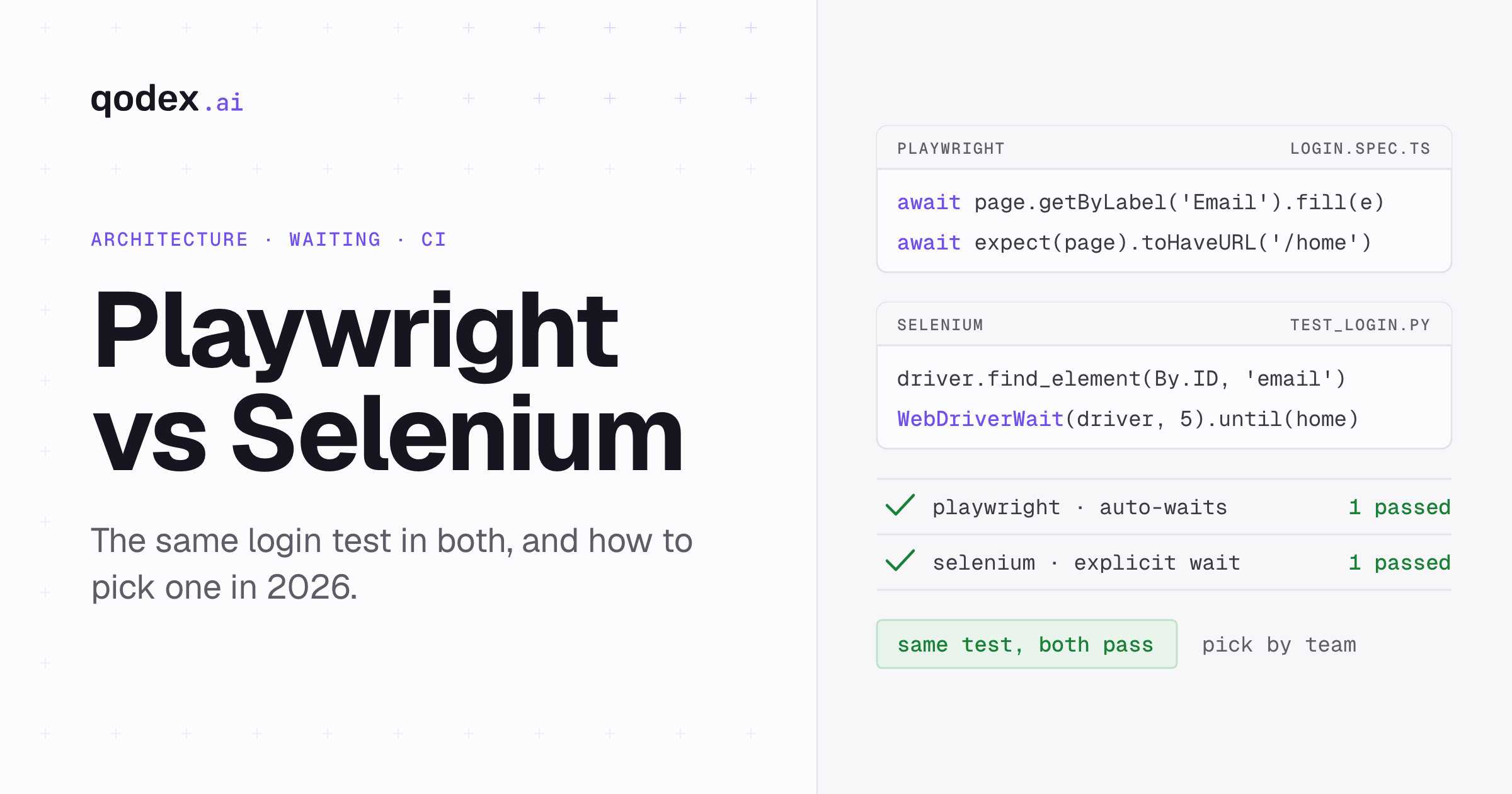
Playwright vs Selenium. Compares browser automation architecture, speed, waiting behavior and maintenance.
Playwright vs Puppeteer. Compares browser coverage, automation APIs, debugging and use cases.
Platform alternatives
7 Best Browserling Alternatives. Compares cross-browser test services for teams moving beyond Browserling.
10 Best Playwright Alternatives. Compares code frameworks and managed platforms that can replace Playwright.
8 Best Selenium Alternatives. Compares newer browser and test automation choices with Selenium.
8 Best testRigor Alternatives. Compares natural-language and AI-assisted automation platforms.
7 Best Cypress Alternatives. Compares browser test frameworks and managed platforms that can replace Cypress.
8 Best Puppeteer Alternatives. Compares browser automation libraries and testing frameworks with Puppeteer.
BrowserStack Alternatives: 9 Best Tools Tested. Compares browser and device cloud options for teams replacing BrowserStack.
7 Best Momentic Alternatives. Compares AI-assisted UI testing platforms with Momentic.
8 Best mabl Alternatives. Compares low-code and AI testing platforms with mabl.
8 Best Testsigma Alternatives. Compares automation platforms for teams replacing Testsigma.
7 Best QA Wolf Alternatives. Compares managed end-to-end testing and automation platform options.
Octomind Alternatives: 7 Tools Compared. Compares migration choices for AI-assisted browser testing.
LambdaTest Alternatives: 7 Tools Compared. Compares browser and device testing clouds with TestMu AI, the company formerly called LambdaTest.
Sauce Labs Alternatives: Review and 10 Tools Compared. Reviews Sauce Labs pricing and device coverage and compares ten alternatives by constraint.
Direct platform comparisons
mabl vs testRigor: An Honest Comparison. Compares two low-code and AI-assisted test platforms.
Browserling vs BrowserStack. Compares two cross-browser test services directly.
How Qodex runs UI tests
Qodex is an agent that writes and runs the tests instead of renting you a browser to run your own. The example below is the demonstration run from our product page, and it is example data rather than a customer's workflow.
The prompt is one sentence: "Go break my checkout flow. Try it as a logged-out user too." From that, the agent crawls the application and finds 34 pages and 61 endpoints, logs in as a buyer, clicks Apply promo code, and fails an assertion that the total was recalculated. It then calls POST /api/orders as an anonymous user, attaches a screenshot named cart-total-mismatch.png, and saves the eleven steps as checkout-promo.spec.ts, which is Playwright you own and can run without the agent.
The point of the example is the shape, not the tool. One sentence in, a failing assertion with a screenshot and a request attached, and a test file that replays on the next change. See how Qodex UI testing works.
Frequently Asked Questions
What is UI testing?
UI testing checks whether the parts of an application that people see and use behave correctly. It confirms that elements such as buttons, forms, menus and links do what they should, that the screen shows the right state, and that the interface stays usable. It covers both appearance and behavior, because a control can look right and still do the wrong thing.
What is the difference between UI testing and GUI testing?
GUI testing is the graphical subset of UI testing. UI means user interface, GUI means graphical user interface, so GUI testing focuses on visible controls: buttons, fields, menus, icons, windows, text and layout. UI testing covers that plus interfaces that are not graphical. In practice the two words are used interchangeably, and a GUI testing checklist is a UI testing checklist.
Is UI testing the same as end to end testing?
No. A UI test can stop at the screen: it drives the interface and asserts on what appears. An end to end test follows the same action through the backend, the database and any integrations, and fails when any layer is wrong. End to end tests give stronger evidence and cost more to maintain, so most teams run few of them and many UI tests. Our end to end testing guide covers the process in full.
When should UI testing be automated?
Automate when you run the same test repeatedly, when the app updates often and you need fast feedback, when you cover several browsers or devices, and when the app is stable enough that you are guarding regressions rather than chasing a moving design. Keep manual testing for exploration, usability and anything where you cannot write the expected result down in advance.
What are the main types of UI testing?
Functional checks of interface elements, cross-browser testing, responsive and device testing, accessibility testing, visual regression testing, smoke testing, regression testing and component testing. Most suites use several. The mix depends on how often the interface changes and how many browsers and devices your users bring.
Which tools are used for UI testing?
They fall into four groups: code frameworks such as Playwright, Selenium and Cypress; browser and device clouds; managed and AI platforms that write the tests for you; and the comparison guides that help you pick between frameworks. Score candidates on browser coverage, language fit, debugging artifacts, continuous integration support, maintenance model, speed, authoring effort, ownership of the output and cost.
How do you write a UI test case?
Start with the scenario in one sentence, such as "a user signs in". Then write rows underneath it: what you do, and what has to be true afterwards. Cover the rejection paths as well as the success path, so invalid input, wrong credentials and network failures each get a case. Assert on what a user can see rather than on internal state, and keep one outcome per test.
Why do UI tests fail when nothing is broken?
Four usual causes: the selector changed and the test was pinned to a fragile CSS path, the assertion ran before the content arrived, the test data drifted because the suite borrowed an account instead of creating one, or the failure is real but only on one browser engine. Saving a screenshot and a trace on every run is what lets you tell those apart in seconds instead of reproducing the failure by hand.